How to use the @BigBTC_arbitrage_bot telegram bot for cross-exchange cryptocurrency arbitrage
Our algorithm helps you profit from price differences between cryptocurrency exchanges without using bank cards.
100% faster than any competitor - we continuously improved our algorithms until we achieved the best performance.
The most advanced feature set.
Ready to trade arbitrage opportunities without delays.
Our scanner monitors cryptocurrency prices in real time, 24/7.
Simple and intuitive setup directly inside your Telegram bot.
Notifications with arbitrage opportunities matching your settings are delivered directly to your Telegram bot.
Personalized settings:
- Set your trading amount. The bot calculates the spread, average price, estimated number of orders for your trade size, and displays the order book so you can evaluate whether the opportunity is worth entering.
- Select buy and sell exchanges independently.
- Choose whether to include coin transfer fees between exchanges (some cross-exchange arbitrage strategies do not require transferring coins).
- Choose whether to include spot trading fees.
- Coin blacklist. The bot will not send arbitrage opportunities involving coins you add to your blacklist.
- Select the starting coins for arbitrage.
- Check whether an opportunity can be hedged using futures or margin trading. You can receive only arbitrage opportunities that support hedging.
- Receive only opportunities where deposits and withdrawals are currently available on both exchanges.
- Filter arbitrage opportunities by minimum and maximum spread.
- Configure exchange mirror links. If you cannot access an exchange through its primary website (for example, if it is blocked in your country), you can use its official mirror link, if provided by the exchange.
- The algorithm verifies whether coin contracts match across exchanges. You can choose to receive only opportunities with matching contracts.
- Filter coins by their CoinMarketCap ranking. Set the highest rank you're interested in, and the bot will exclude opportunities involving lower ranked coins.
- Filter opportunities by their minimum lifetime.
- Filter coins by their 24-hour trading volume in USDT.
Powerful features:
- Personalized settings for every cross-exchange arbitrage strategy.
- Spread monitoring. As soon as an arbitrage opportunity matching your settings appears, the bot instantly sends you a notification.
- Refresh an arbitrage opportunity at any time to see how the spread changes in real time.
- Network compatibility check. The bot displays only opportunities where the coin networks match.
- The bot shows the lifetime of each arbitrage opportunity - the amount of time it has maintained a positive spread. This helps filter out opportunities caused by short lived price spikes that are difficult to execute.
- Checks cryptocurrency deposit and withdrawal availability on exchanges.
- Includes coin transfer fees between exchanges and spot trading fees.
- Select the starting coins for arbitrage.
- The bot displays each coin's CoinMarketCap ranking along with a direct link to its CoinMarketCap page.
- Each arbitrage opportunity includes the coin's 24-hour trading volume.
What's included in an arbitrage opportunity?Copy link
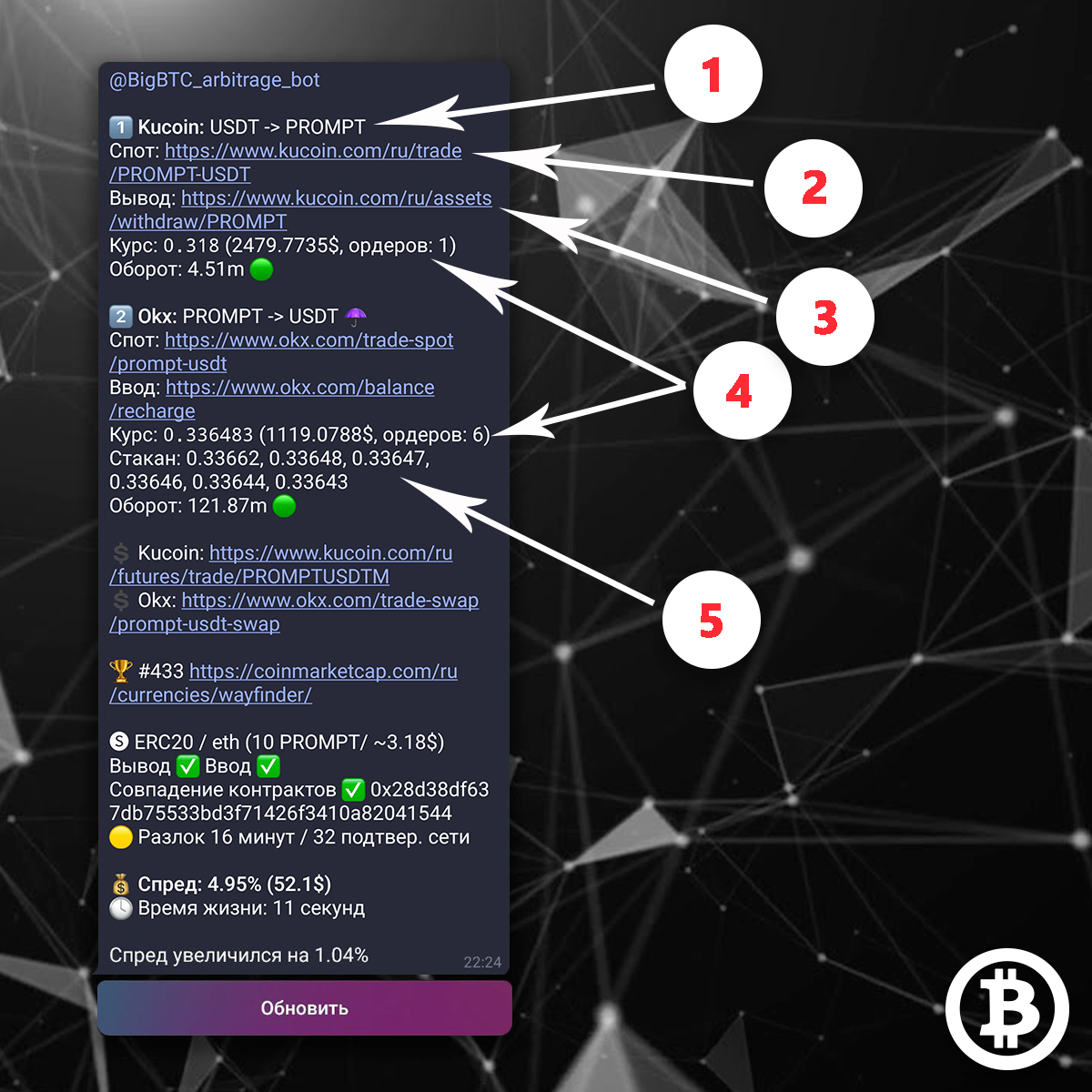
Below is an example of an arbitrage opportunity. Each opportunity consists of two steps. All links in the bot are displayed in full for faster and more convenient navigation. The numbered blocks are explained below:
1The exchange where you need to execute the trade and the trade direction.
In this example, you need to exchange USDT for PROMPT on the KuCoin exchange.
2Link to the spot trading pair with the required trade direction on the selected exchange.
3Link to the withdrawal page for the required coin on the sending exchange.
4Price
This section displays the average coin price. In parentheses, you'll see the number of order book orders required to purchase your desired amount of the coin, along with the total volume available across those orders. These values are calculated based on the trading amount you've set in the bot's settings. In this example, the user's trading amount is set to 1,000 USDT. This means that in the first step, the required amount of PROMPT can be purchased from a single order in the order book at an average price of 0.318.
The second step contains the same information: the exchange where you need to trade, the trade direction, a link to the spot trading pair, and a link to the deposit page for the required coin on the receiving exchange.
Pay special attention to item 4. In the second step, the user will need to buy the required amount of coins using 6 orders from the order book. The average price will be 0.336483, and the total volume across those 6 orders is 1,119 USDT.
5Prices of the required order book orders
This information helps you evaluate whether it's practical to enter the trade. In this example, the prices of the last six required orders are shown. To save space and improve readability, if many orders are needed, the bot displays only the first and the last order. If only a few orders are required, the complete order book section is shown.
If, as in the first step, only a single order is required, this section will not be displayed because it isn't necessary.
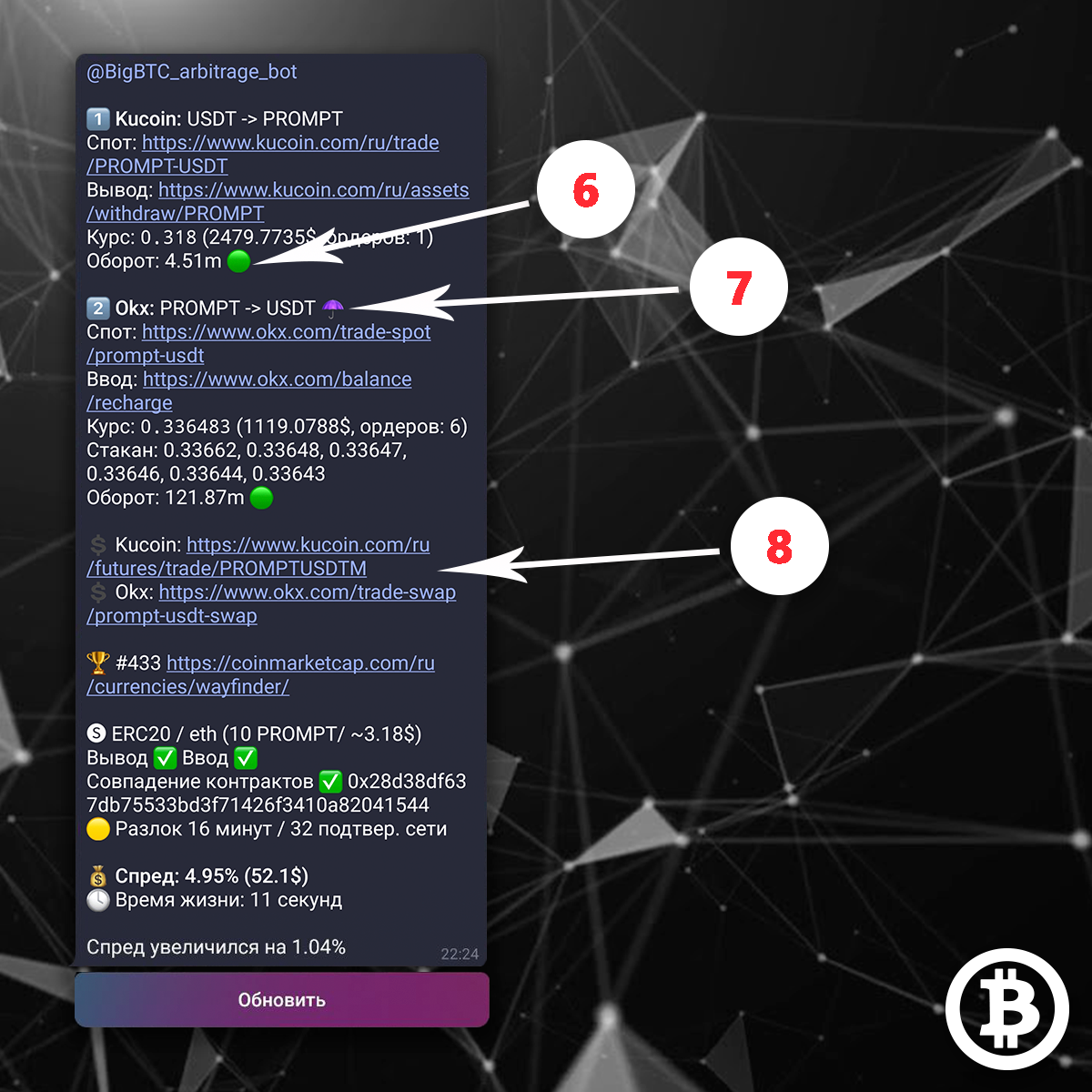
624-hour trading volume (USDT)
This section shows the coin's 24-hour trading volume in USDT. It represents the total value of trades executed over the past 24 hours. A higher trading volume usually indicates better liquidity and stronger market activity, making it easier to buy or sell the coin with minimal price slippage.
Next to the trading volume, you'll see emoji indicators with the following meanings:
 - the coin's 24-hour trading volume exceeds 3 million USDT.
 - the coin's 24-hour trading volume exceeds 1 million USDT.
- the coin's 24-hour trading volume is between 100,000 and 1 million USDT.
 - the coin's 24-hour trading volume is between 1,000 and 100,000 USDT.
 - the coin's 24-hour trading volume is below 1,000 USDT.
7Margin hedging
If an arbitrage opportunity supports margin hedging, you'll see an umbrella icon ☂️. If the ☂️ icon is not displayed, it means borrowing is not available for that coin on the corresponding exchange.
8Links to the futures trading pair for the coin on exchanges where futures are available
This section is intended for traders who use futures hedging.
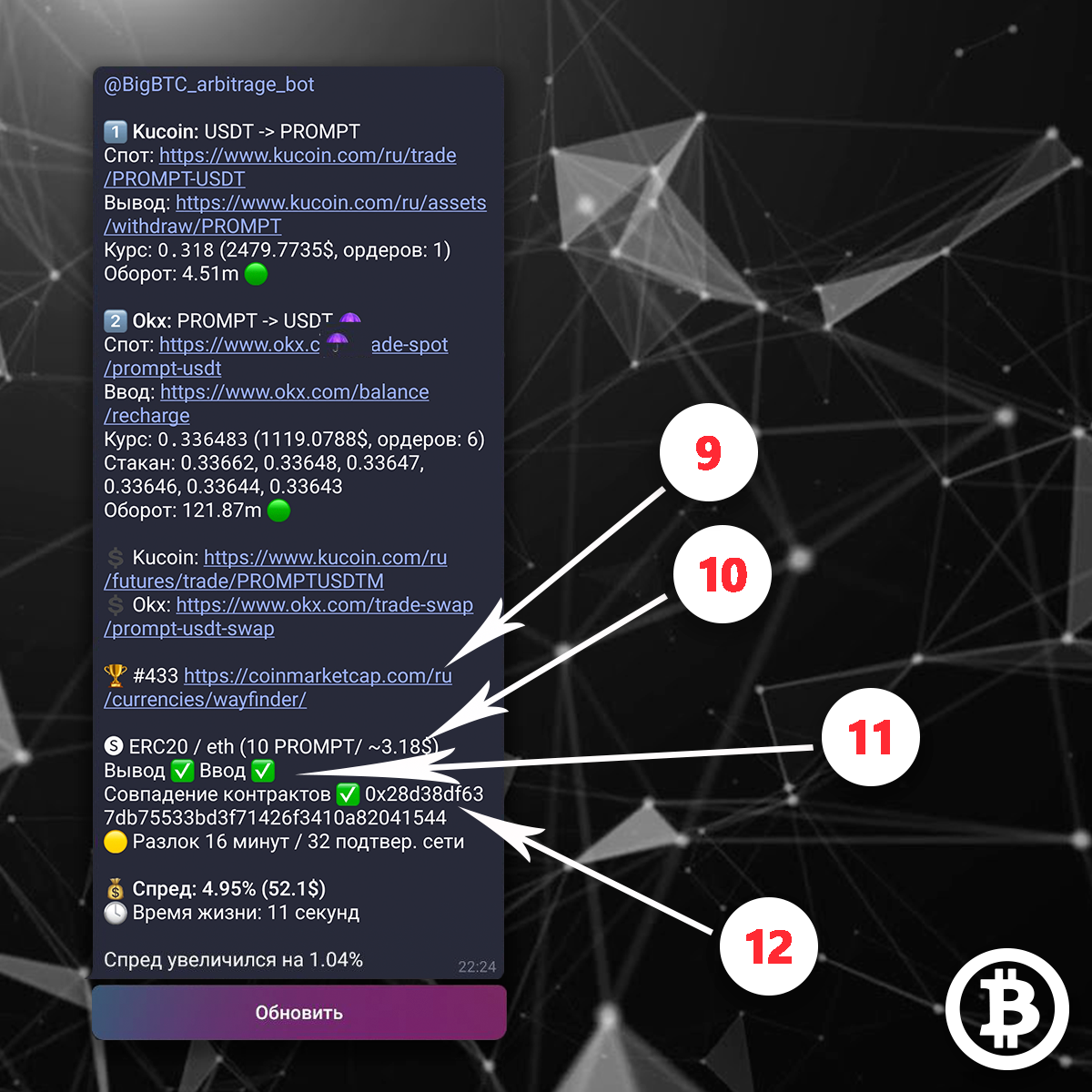
9CoinMarketCap ranking of the coin and a link to its CoinMarketCap page
The higher a coin ranks on CoinMarketCap, the more liquid it generally is. Follow the link to view detailed information about the coin. In this example, the coin is ranked #443.
The following sections provide information about the blockchain networks available for transferring the coin. The bot displays only the networks that are supported by both exchanges. There may be one matching network or several.
10Blockchain network name (the withdrawal fee is shown in parentheses, both in the coin and in USDT)
In this example, there is one matching network, ERC20. The withdrawal fee on this network is 10 PROMPT, which is approximately 3.18 USDT.
11Availability of withdrawals from the sending exchange and deposits to the receiving exchange on this network
A ✅ icon means deposits or withdrawals are available, while ❌ means they are unavailable. In this example, withdrawals on the ERC20 network are available on KuCoin, and deposits on the same network are available on OKX.
12Matching smart contracts
If both exchanges in the arbitrage opportunity provide the coin's smart contract address and the addresses match, this section will be displayed. In this example, the contracts match, and the contract address is shown.
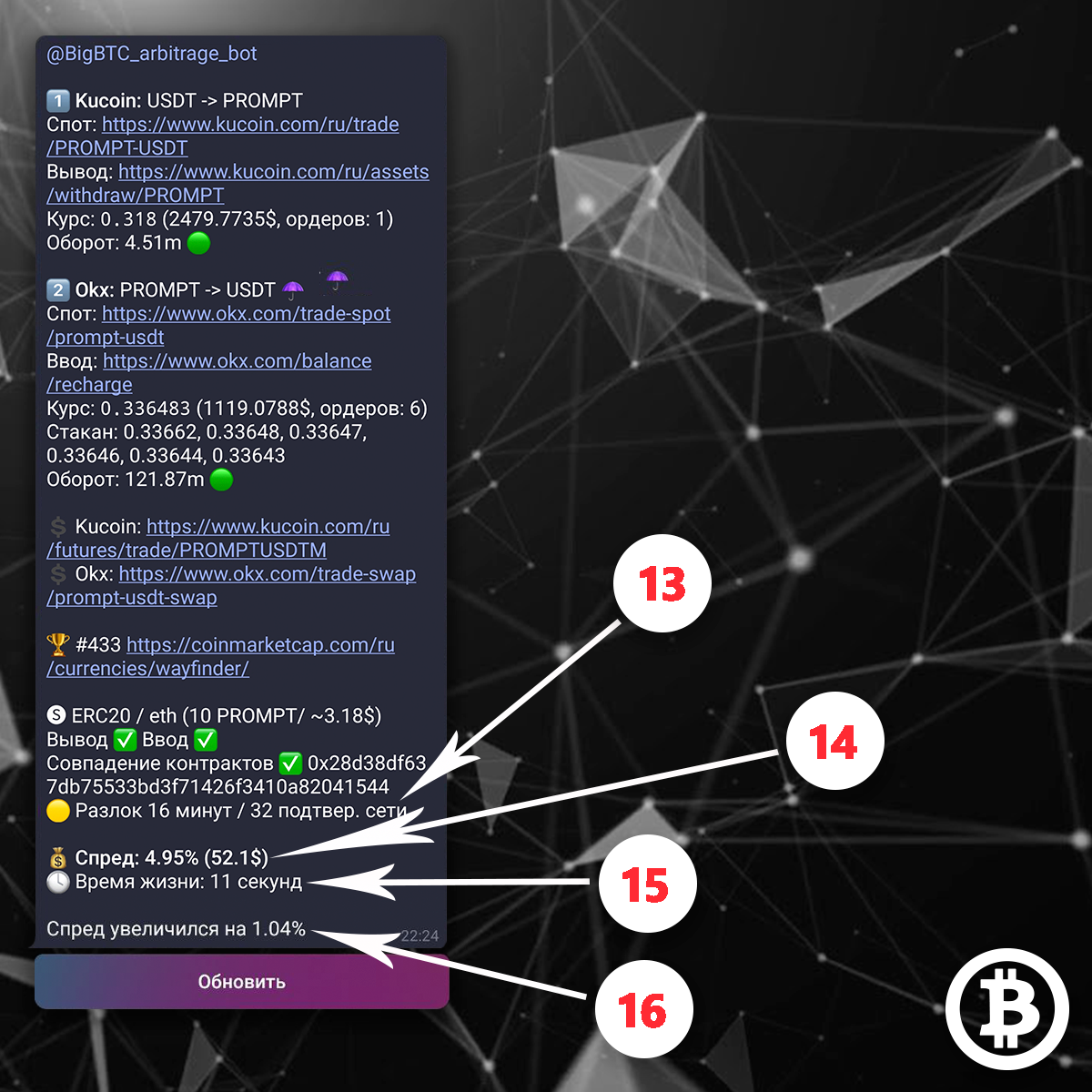
13Estimated coin transfer time
In addition to withdrawal fees, the bot also shows the estimated transfer time for each blockchain network. This is the approximate time until the coins become available for trading on the destination exchange (in other words, when you can sell them on the spot market). This lets you quickly see whether the transfer is expected to take around 5 minutes or as long as 3 hours.
- Green indicates an estimated transfer time of up to 15 minutes.
- Yellow indicates an estimated transfer time between 15 minutes and 1 hour.
- Red indicates an estimated transfer time of more than 1 hour.
14Arbitrage spread (percentage and US Dollar value)
The spread is calculated based on your trading amount. Unless you've changed the default settings, the calculation includes both spot trading fees and the coin withdrawal fee.
15Arbitrage opportunity lifetime
This value shows how many seconds or minutes ago the bot first detected a positive spread for this arbitrage opportunity. The bot updates the opportunity in real time, so you always receive it based on your current settings.
Here's how it works: the algorithm records an arbitrage opportunity as soon as its spread becomes positive. It then continuously recalculates the opportunity in real time using the latest order book data from both exchanges. As long as the spread remains positive, the opportunity is considered active. The bot shows you when the opportunity was originally detected by the algorithm, while the opportunity itself is delivered according to your personal filters, such as trading amount, minimum spread, and other settings.
For example, the algorithm detects an arbitrage opportunity when its spread first becomes slightly above 0%. If your minimum spread is set to 1%, you won't receive a notification until the spread reaches 1%. The bot will still display how many seconds or minutes ago the spread first became positive.
The bot includes a minimum opportunity lifetime filter.
In the settings, you can specify the minimum lifetime (in seconds) that an arbitrage opportunity must have before you receive it. For example, if you set the filter to 120 seconds, you'll only receive opportunities that have remained active for at least 2 minutes. This helps filter out opportunities caused by sharp price spikes that disappear almost immediately and are difficult to trade.
16Spread increase
This section is displayed only if you've enabled the Resend an Opportunity setting. In this example, the user had already received this arbitrage opportunity before, but the opportunity was configured to be resent whenever the spread increased by 0.5%. After the market moved, the spread increased by 1.04%, so the bot sent the opportunity again.
Below every arbitrage opportunity, you'll find the Refresh button. Click it to update the opportunity using the latest market prices. The bot will recalculate the current spread and display the latest blockchain network status.
Changing settingsCopy link
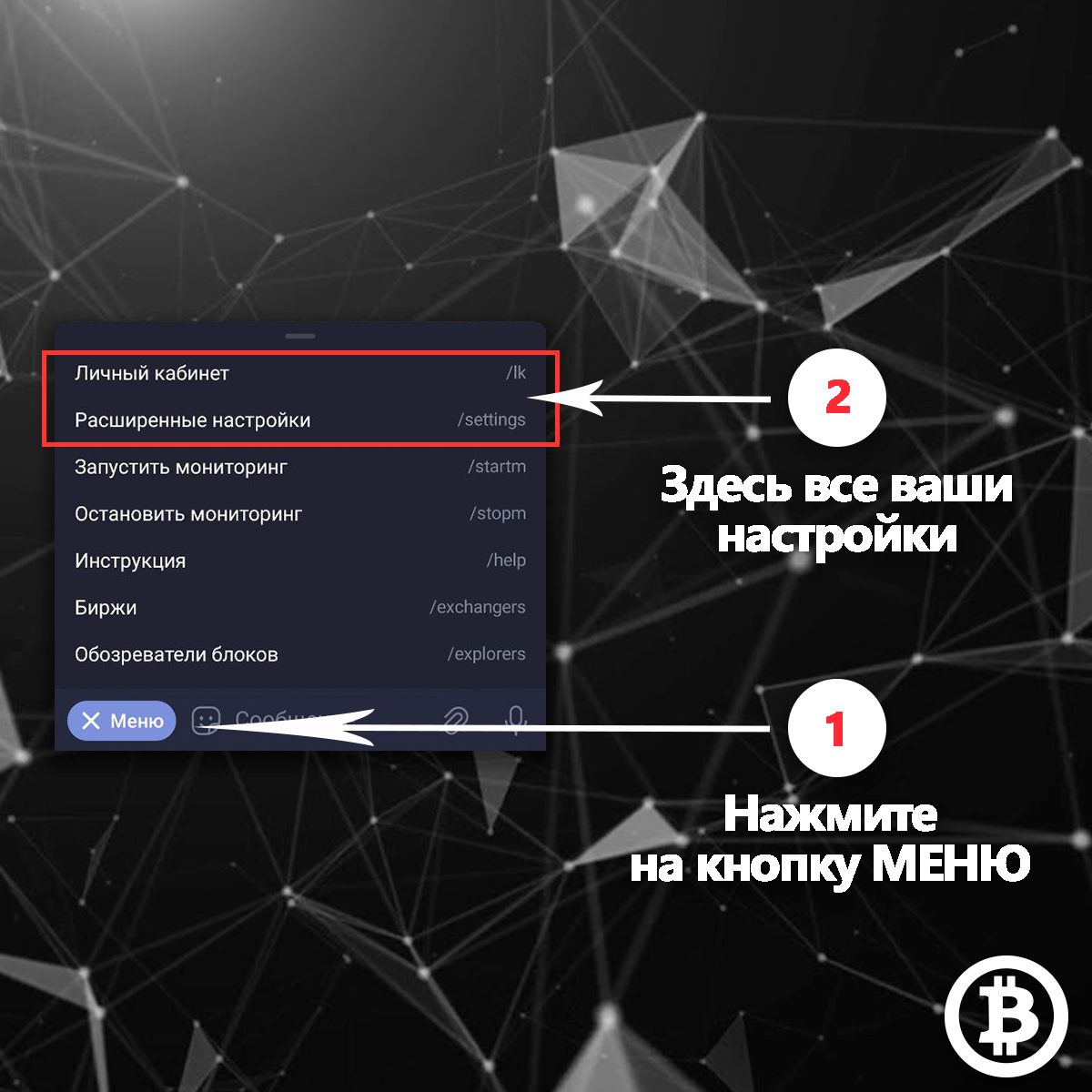
Let's first look at how to change the bot's settings.
All settings are available in your Personal account. For convenience, we've divided them into two categories:
- Basic settings
- Advanced settings
Tap the MENU button, then open Personal account. There you'll find your basic settings. Below that message, you'll also see the Advanced Settings button. Tap it to view all of your advanced settings. You can also access them by tapping MENU → Advanced Settings.
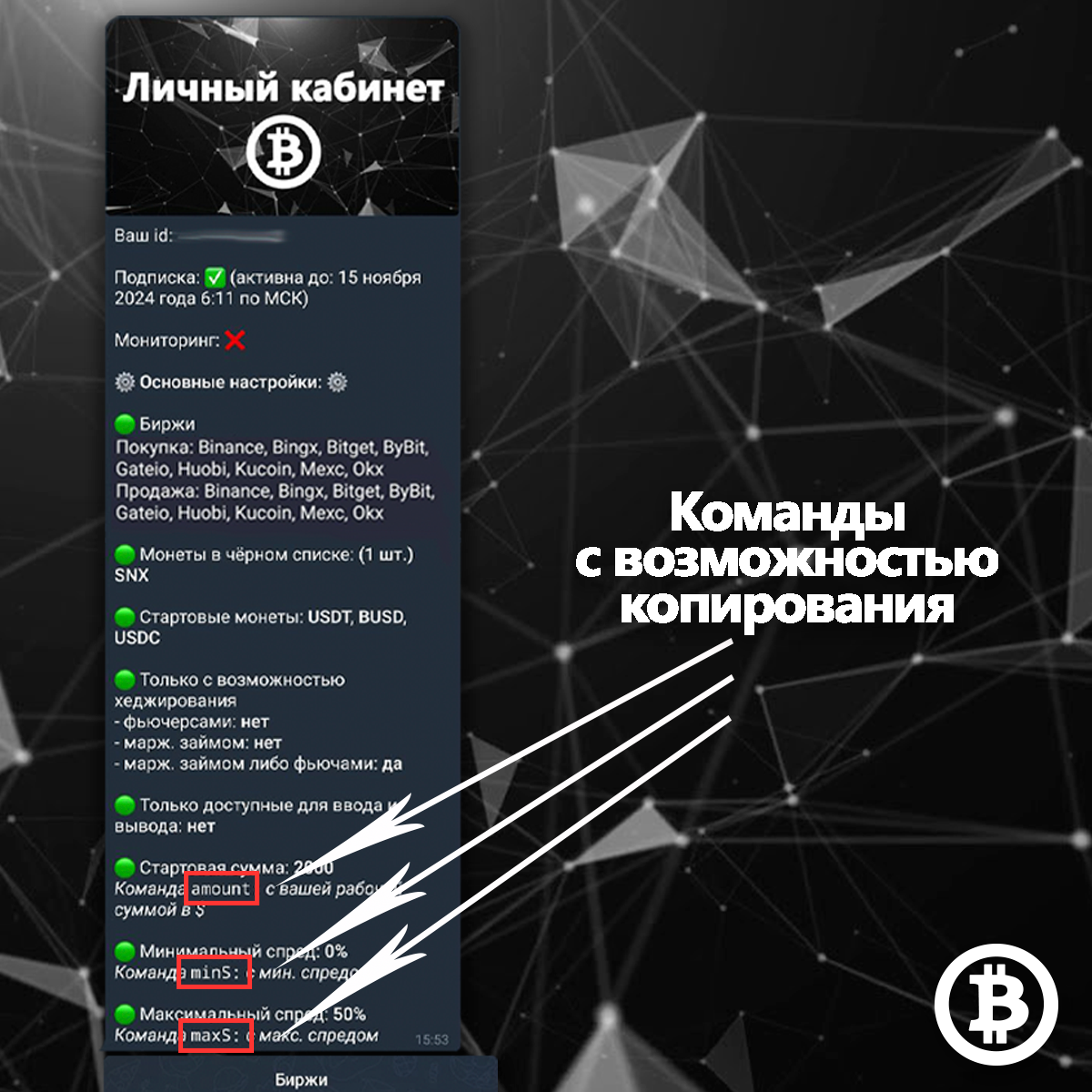
There are two ways to change your settings:
- Using buttons
- Using commands
Using buttons is straightforward: simply tap the desired button, and the setting is applied immediately.
Using commands may seem more complicated at first, but it's actually very simple.
Below some settings, you'll see a command that can be used to change that setting. Important: you don't need to type these commands manually. They're clickable. Simply tap the command once (Telegram highlights text that can be copied), and it will be copied to your clipboard. Paste it into the bot's message field and add the value you want to apply.
For example, if you want to change your trading amount from 300 to 5,000, copy the appropriate command, paste it into the bot's message field, append 5000, and send it. Your trading amount will be updated, and you'll immediately see the new value in your Personal Account.
MonitoringCopy link
What is monitoring?
Monitoring allows you to automatically monitor arbitrage opportunities based on your personal settings. Once monitoring is enabled, you'll receive a Telegram notification every time the bot finds an arbitrage opportunity that matches your criteria.
How does monitoring work?
Monitoring is started once and runs continuously for the selected duration (available monitoring periods are 1, 2, 3, 4, 5, or 6 hours). Any settings you change while monitoring is running are applied immediately. There's no need to stop and restart monitoring.
During monitoring, you'll receive arbitrage opportunities that match your settings. However, you won't receive repeated notifications for the same opportunity involving the same exchanges and the same coin. This is because the bot updates market data in real time. If it resent every change, you could receive notifications every few milliseconds, making the bot difficult to use.
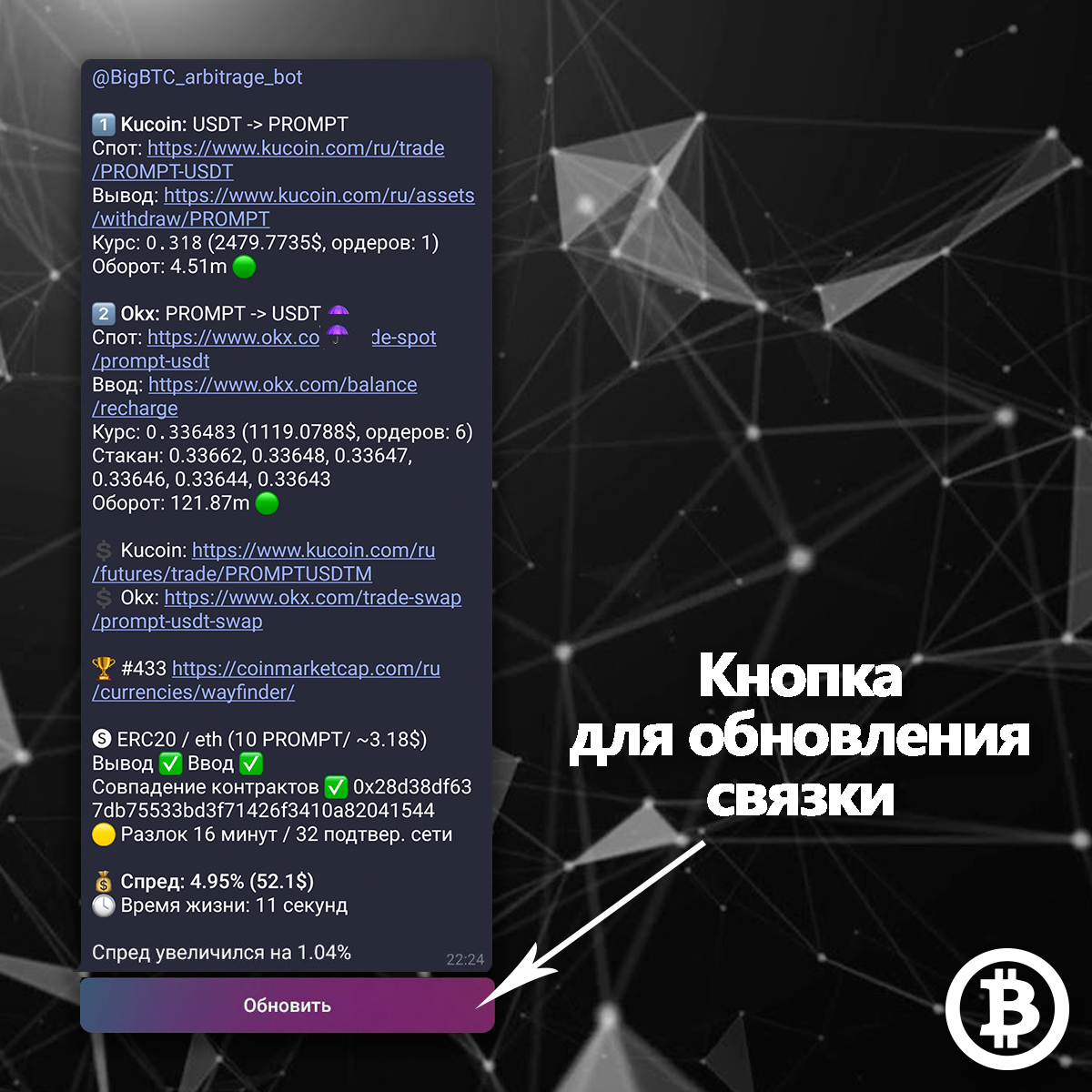
That's why every arbitrage opportunity includes a Refresh button. Tap it to update the opportunity with the latest market prices and see the current spread.
The bot also includes a feature that can resend an arbitrage opportunity when its spread increases by a percentage you specify. This allows you to receive another notification if the opportunity becomes even more profitable. The feature is explained in detail in the corresponding section of this guide.
How do I start monitoring?
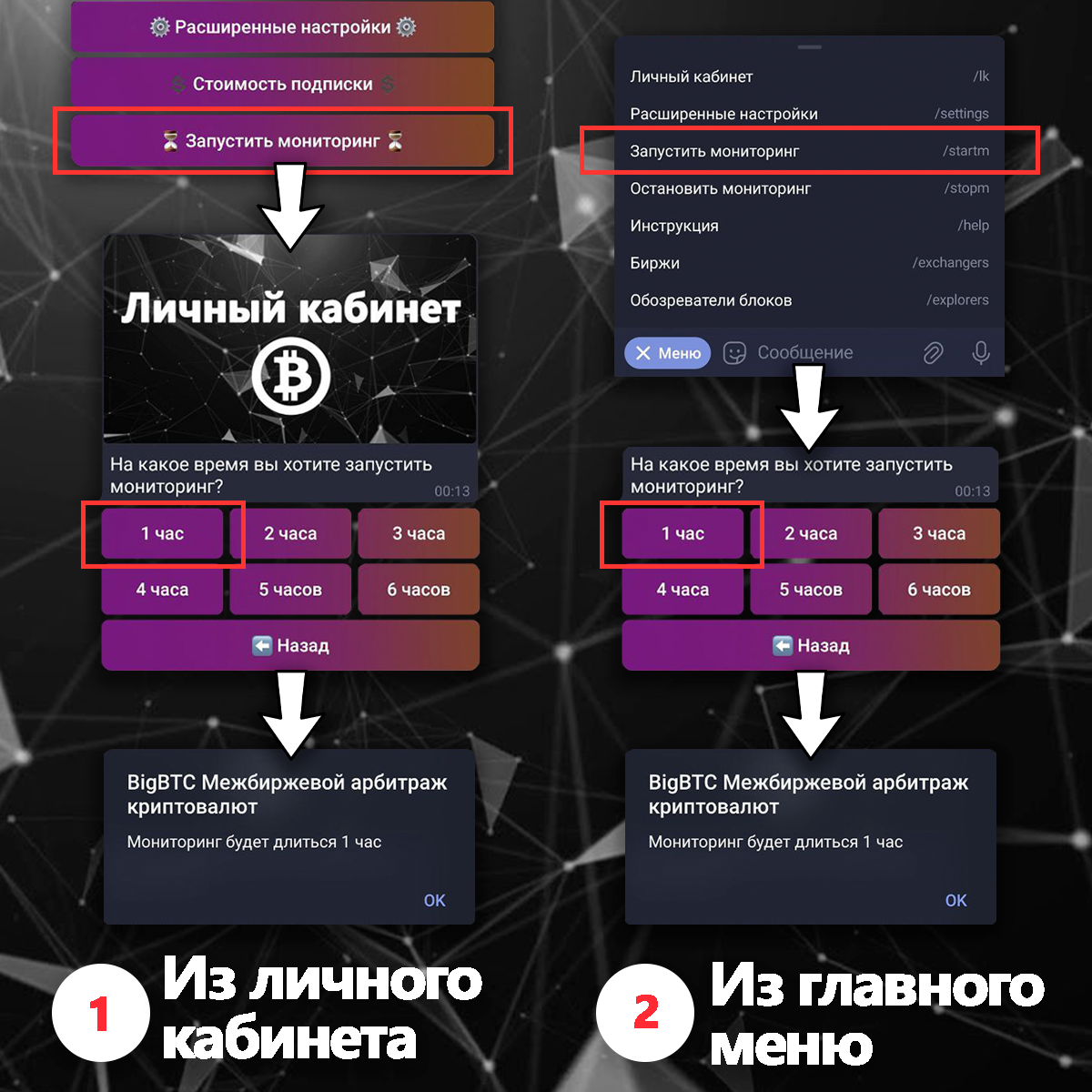
1Start monitoring from your personal account
Open your Personal account. If monitoring isn't currently running, you'll see the Start Monitoring button below your settings. Tap it and choose how long you want monitoring to run.
2Start monitoring from the bot's Main Menu
Tap the Start monitoring button in the bot's main menu, then select the monitoring duration.
How do I stop monitoring?
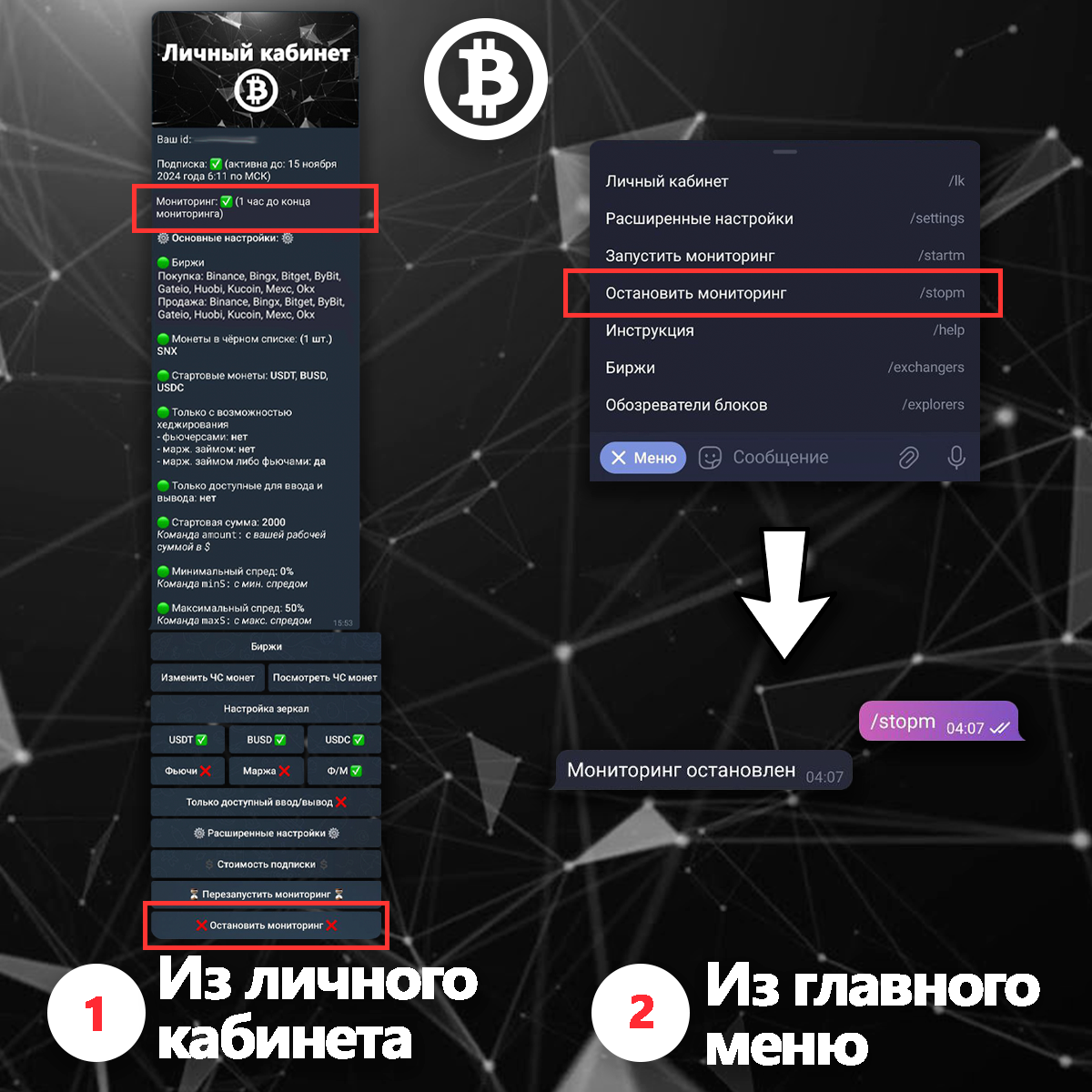
1Stop monitoring from your personal account
Open your Personal account. If monitoring is currently running, you'll see how much time remains until it ends. Below your settings, you'll find the Stop Monitoring button. Tap it to stop monitoring immediately. If monitoring is already active, you'll also see the Restart Monitoring button. This button lets you change the monitoring duration.
2Stop monitoring from the bot's Main Menu
Tap the Stop monitoring button in the bot's main menu to stop monitoring.
Personal accountCopy link
Your Personal account displays all of your current settings, including both basic and advanced settings. You can also change every bot setting directly from your Personal Account.
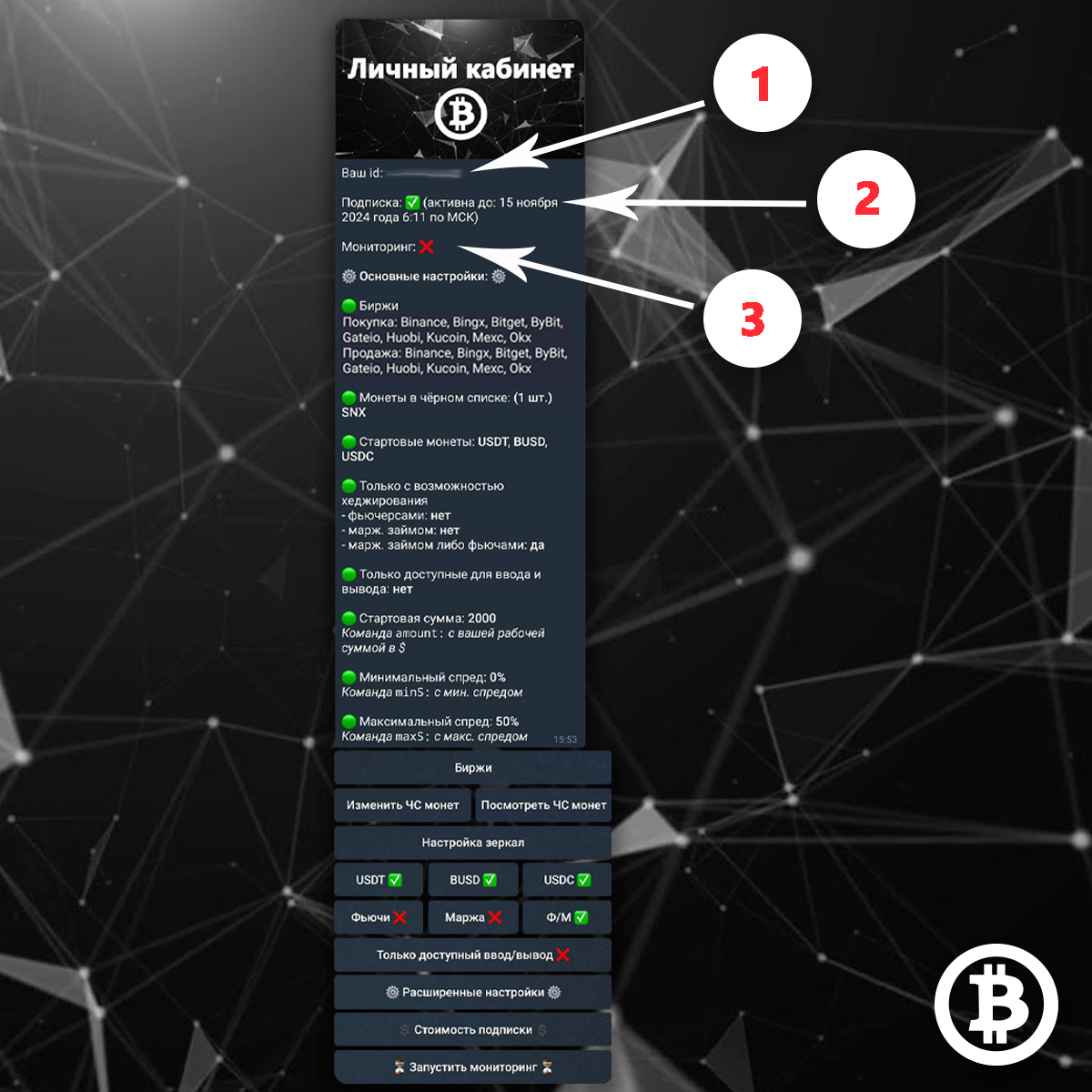
1Your unique bot ID
Your ID can be copied with a single tap. Just tap your ID once, and it will be copied to your clipboard. Provide this ID to the bot's support team when purchasing or renewing your subscription, or whenever you need assistance.
2Subscription information
Here you can view your subscription status. A ✅ icon means your subscription is active, while a ❌ icon means it has expired. You'll also see the exact date and time when your subscription expires.
3Current monitoring information
This section shows the status of your current monitoring session, including whether monitoring is currently running and, if it is, how much time remains until it ends.
Below that, you'll find the section containing your basic settings.
Selecting exchanges for buying and sellingCopy link
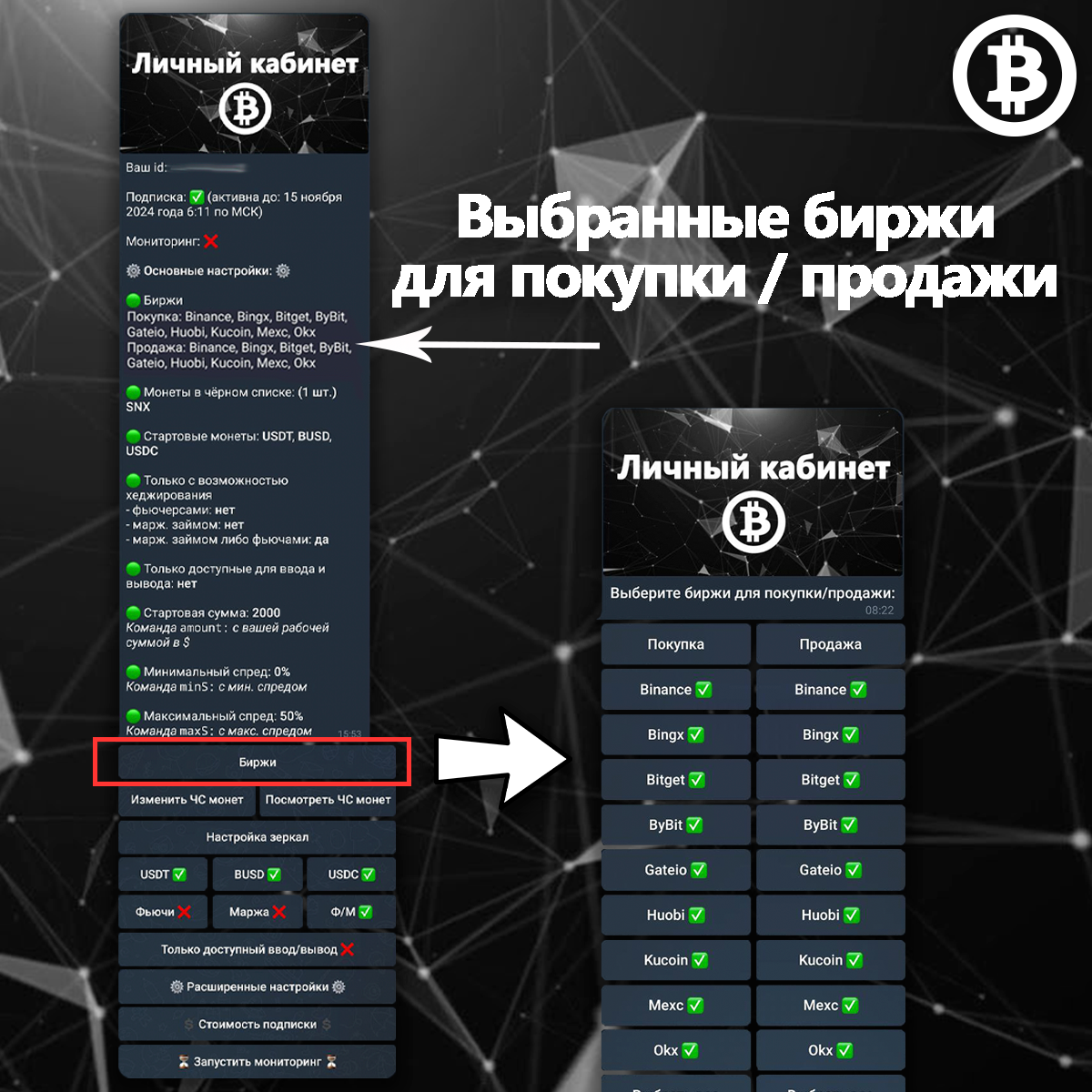
In your Personal account, you'll see the exchanges you've selected for buying and selling. Tap the Exchanges button to change this setting.
Please note that exchanges are selected separately for buying and separately for selling. This is useful if you want to exclude certain exchanges only for buying - for example, if your balance on a particular exchange is currently too low. You can also select just one exchange for buying if your entire trading balance is currently held on that exchange.
A ✅ icon indicates that an exchange is selected. Tap an exchange once to change its status. The setting is applied immediately. You can also tap Select All to select every exchange in the list at once.
The list of supported exchanges is constantly expanding. To see which exchanges are currently available in the bot, tap the Exchanges button in the bot's main menu.
Coin BlacklistCopy link
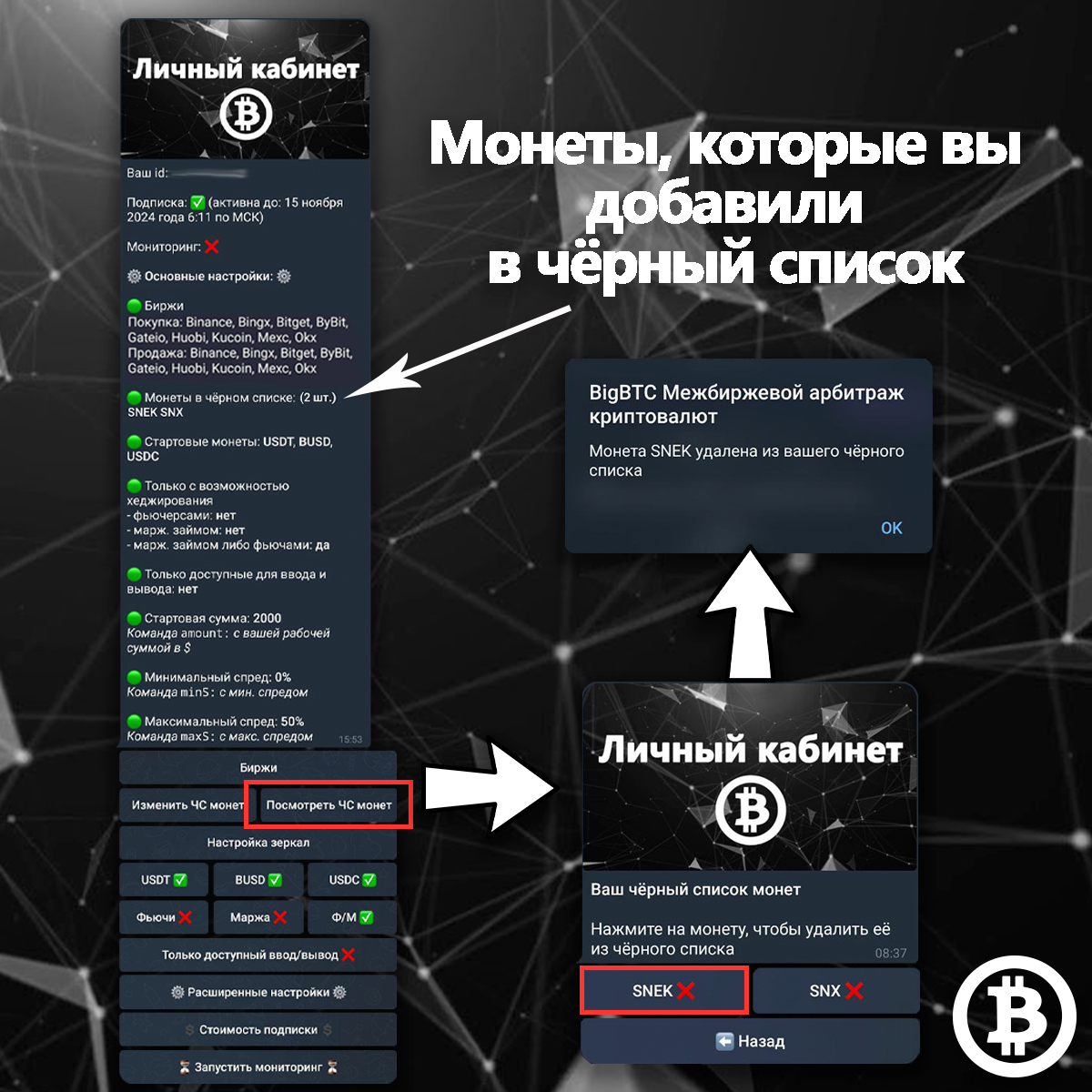
In your Personal Account, you can view all the coins you've added to your Coin Blacklist. Arbitrage opportunities containing these coins will not be sent to you.
Tap the View Coin Blacklist button to see all the coins currently included in your blacklist.
Tap any coin you want to remove from your Coin Blacklist, and it will be removed immediately.
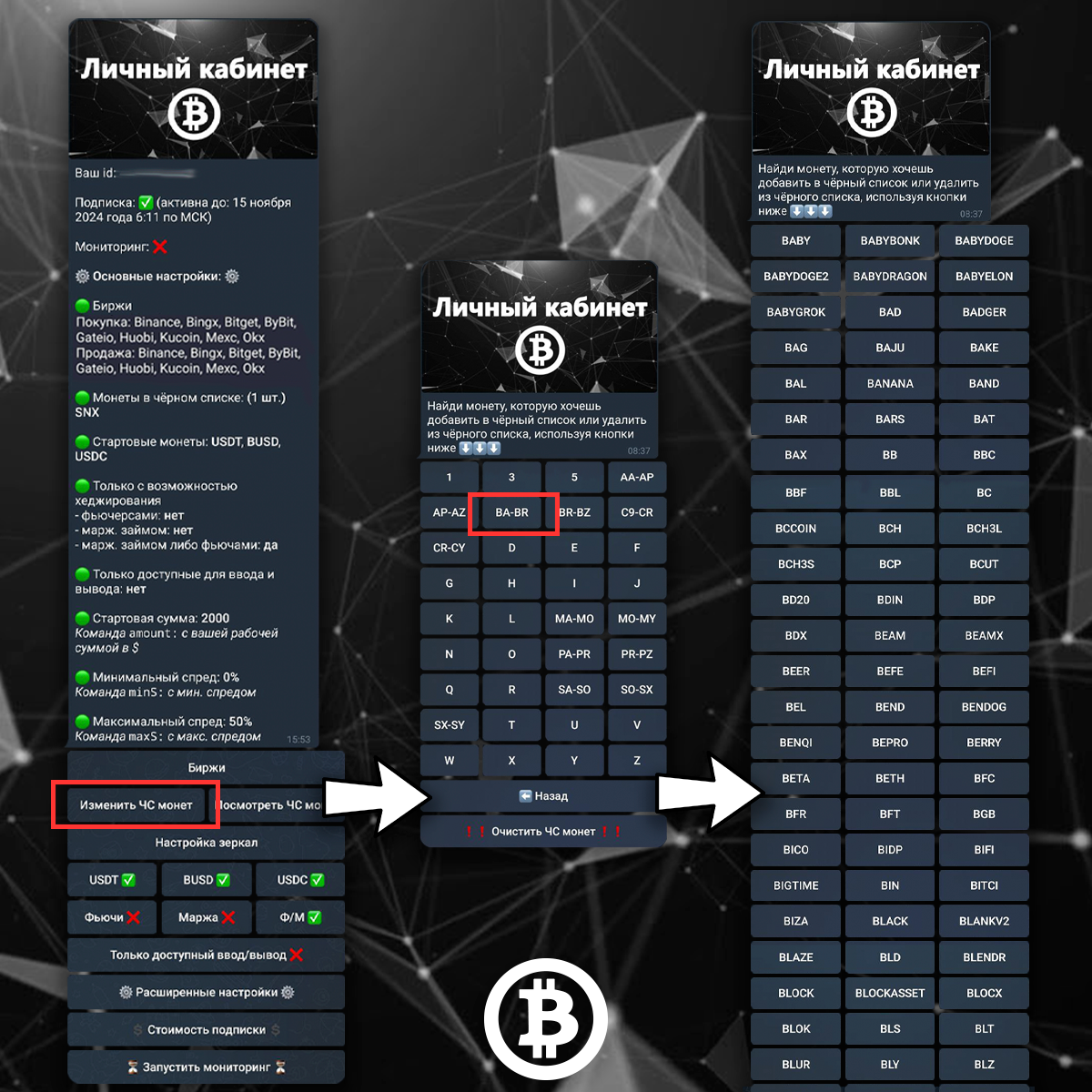
Tap the Edit Coin Blacklist button. All coins are sorted alphabetically. Select the desired letter, then tap the coin you want to add to your Coin Blacklist. You'll receive a confirmation message once the coin has been added.
Coins that are already in your Coin Blacklist are marked with a ❌ icon. If you tap a coin marked with this icon, it will be removed from your blacklist, and you'll receive a confirmation message.
Exchange mirror settingsCopy link
What is an exchange mirror?
An exchange mirror is an alternative URL that leads to the same cryptocurrency exchange. Some exchanges provide one or more mirror domains in addition to their primary website. For example, you can access Binance through its main domain, binance.com, or use alternative domains such as binance.me or binance.info. All of these links open the same exchange.
Note: every exchange mirror is carefully verified by our team. We confirm that each link is valid through the exchange's official support. If you'd like, you can also verify this information yourself by contacting the exchange's support team.
Why is this feature useful?
Exchange mirrors can be useful if access to a particular exchange is restricted in your country and you don't want to use a VPN. Once you select a mirror in this setting, the bot will use it for all links it provides, including links to the spot trading pair, deposit page, withdrawal page, and futures trading page for the selected exchange.
By default, all users use the exchanges' primary domains, and no exchange mirrors are enabled.
How do I enable an exchange mirror?
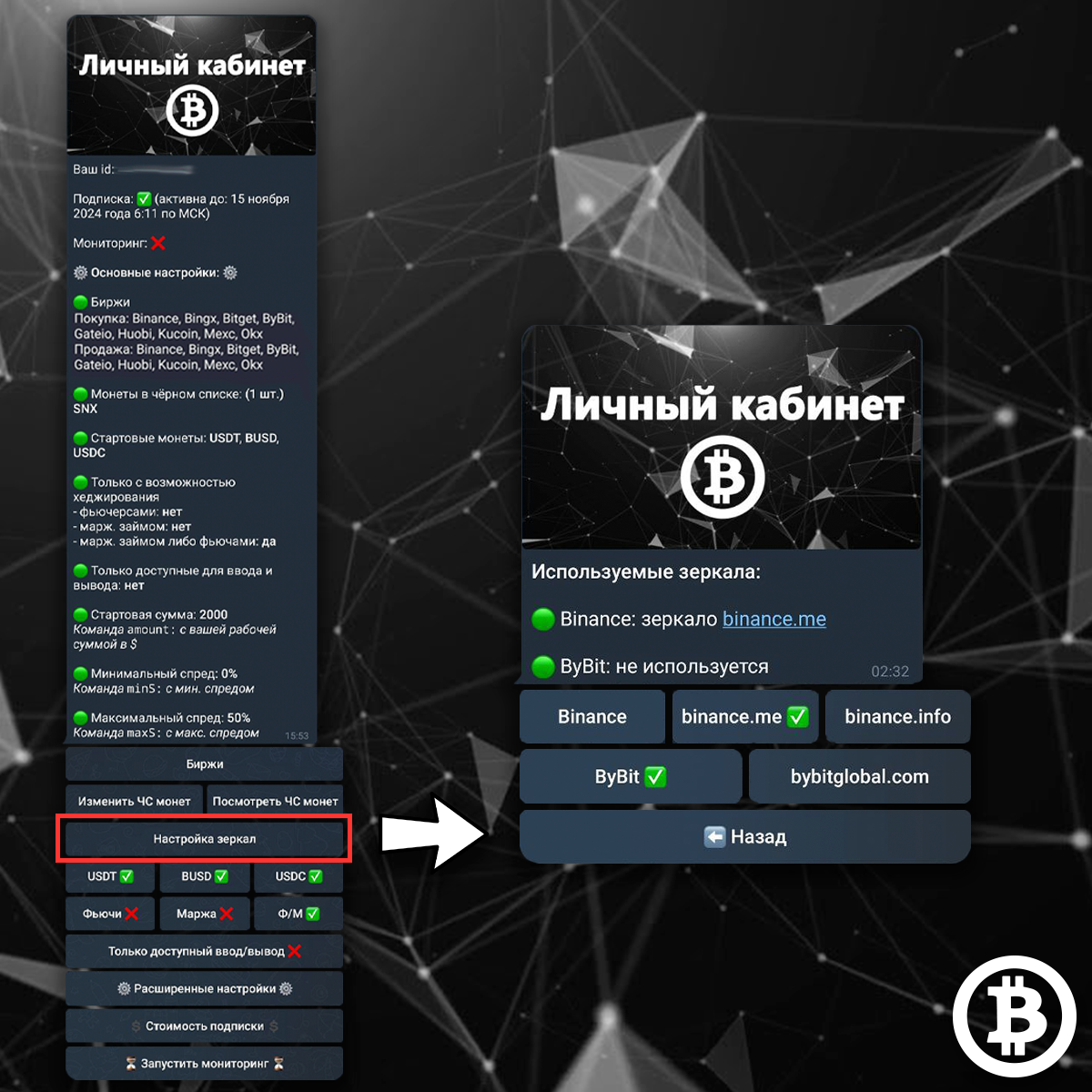
Tap the Exchange mirror settings button in your Personal Account. You'll see which mirrors are currently enabled (if any) as well as all available mirrors. Simply tap the mirror you want to use, and the setting will be applied immediately. The exchange name represents its primary domain, while the buttons to the right are its available mirror domains. New mirrors are added regularly.
Selecting starting coinsCopy link
A starting coin is the coin your arbitrage opportunity begins and ends with. You can select one or multiple starting coins. By default, all starting coins are enabled.
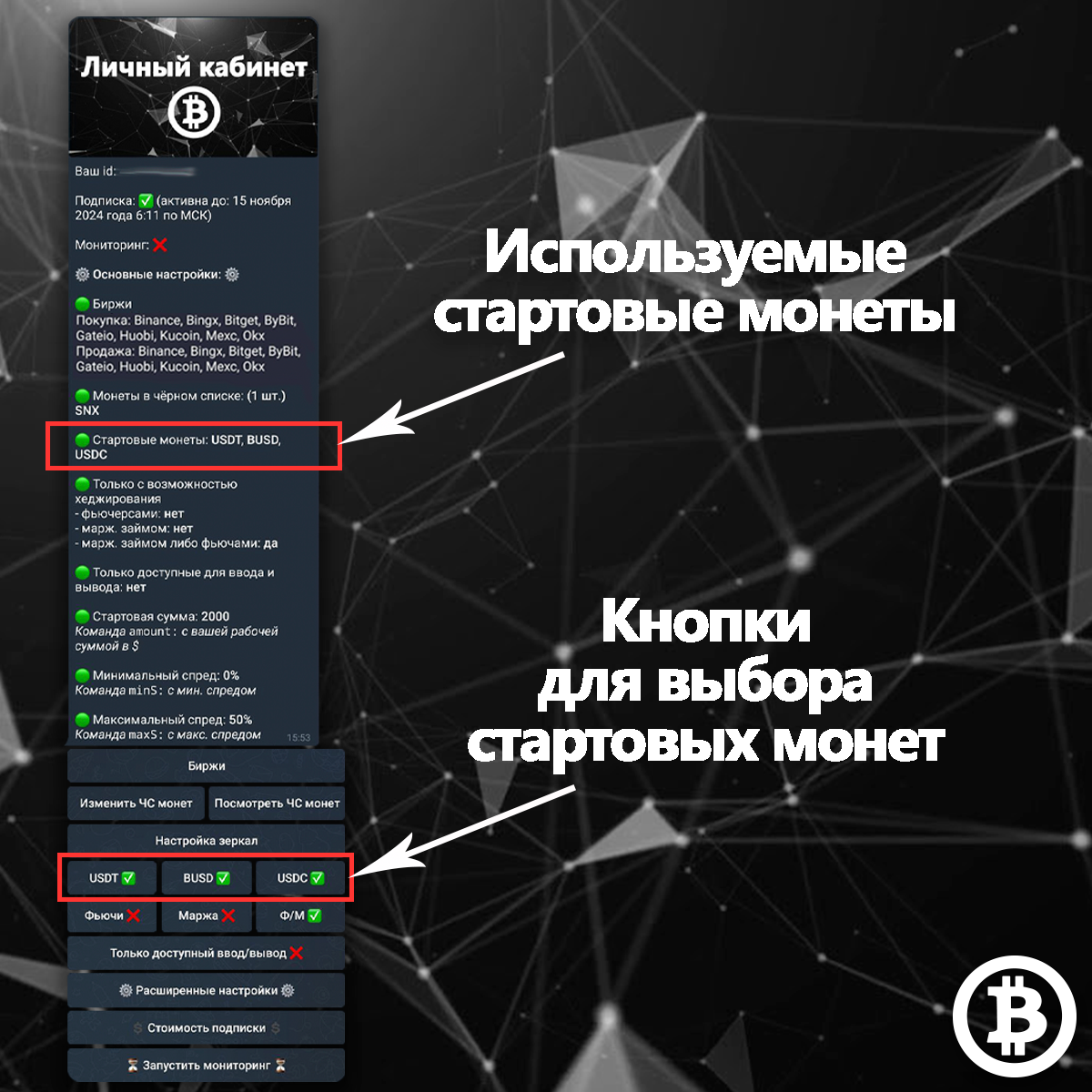
In your Personal account, you can see which starting coins are currently enabled. Use the buttons below the message to change your selection. A ✅ icon means the starting coin is enabled, while a ❌ icon means it is disabled. Tap a starting coin once to toggle its status. You'll receive a confirmation notification whenever its status changes.
Selecting the hedging modeCopy link
Futures hedging
For each arbitrage opportunity, the bot provides links to the futures trading pair for the working coin whenever futures are available. Not every coin has a futures market. If the coin is available for futures trading, the bot includes the corresponding link. If no futures market exists for that coin, no futures link is shown. Futures trading for a particular coin may be available on one exchange in the arbitrage opportunity or on both.
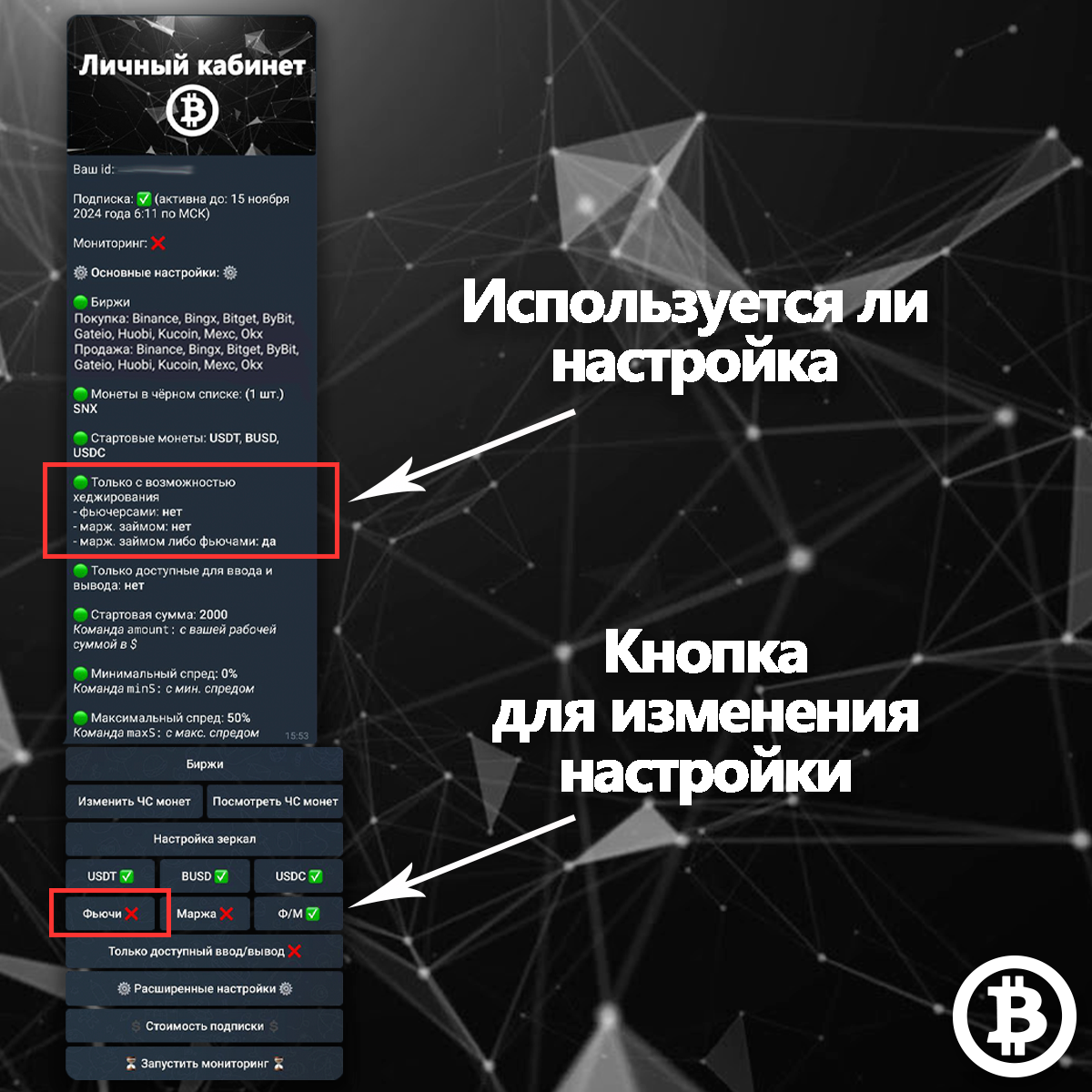
If the Futures only setting is enabled, the bot will show you only those arbitrage opportunities where the working coin has a futures trading pair available on at least one of the exchanges.
In your Personal account, you can see whether this setting is enabled. Tap the Futures Only button to toggle it. A ✅ icon means the setting is enabled and you'll receive only arbitrage opportunities that support futures hedging. A ❌ icon means the setting is disabled and you'll receive all arbitrage opportunities, regardless of whether futures hedging is available.
Margin hedging
For each arbitrage opportunity, the bot also indicates whether margin hedging is available on an exchange. If margin trading is supported for the trading pair, you'll see a ☂️ icon next to the spot trading pair.
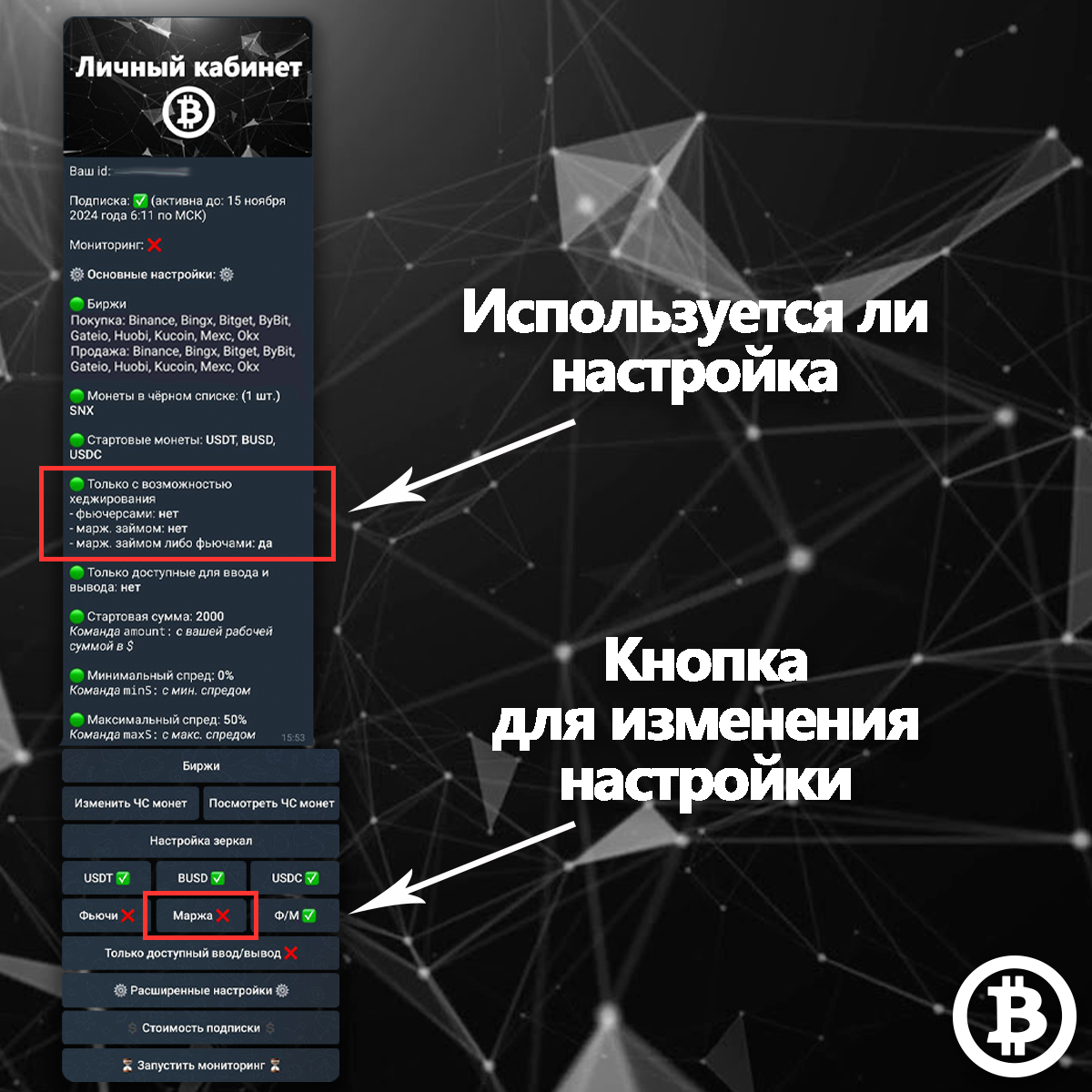
If the Margin only setting is enabled, the bot will show you only those arbitrage opportunities where margin hedging is available.
In your Personal account, you can see whether this setting is enabled. Tap the Margin Only button to toggle it. A ✅ icon means the setting is enabled and you'll receive only arbitrage opportunities that support margin hedging. A ❌ icon means the setting is disabled and you'll receive arbitrage opportunities regardless of whether margin hedging is available.
Any hedging method
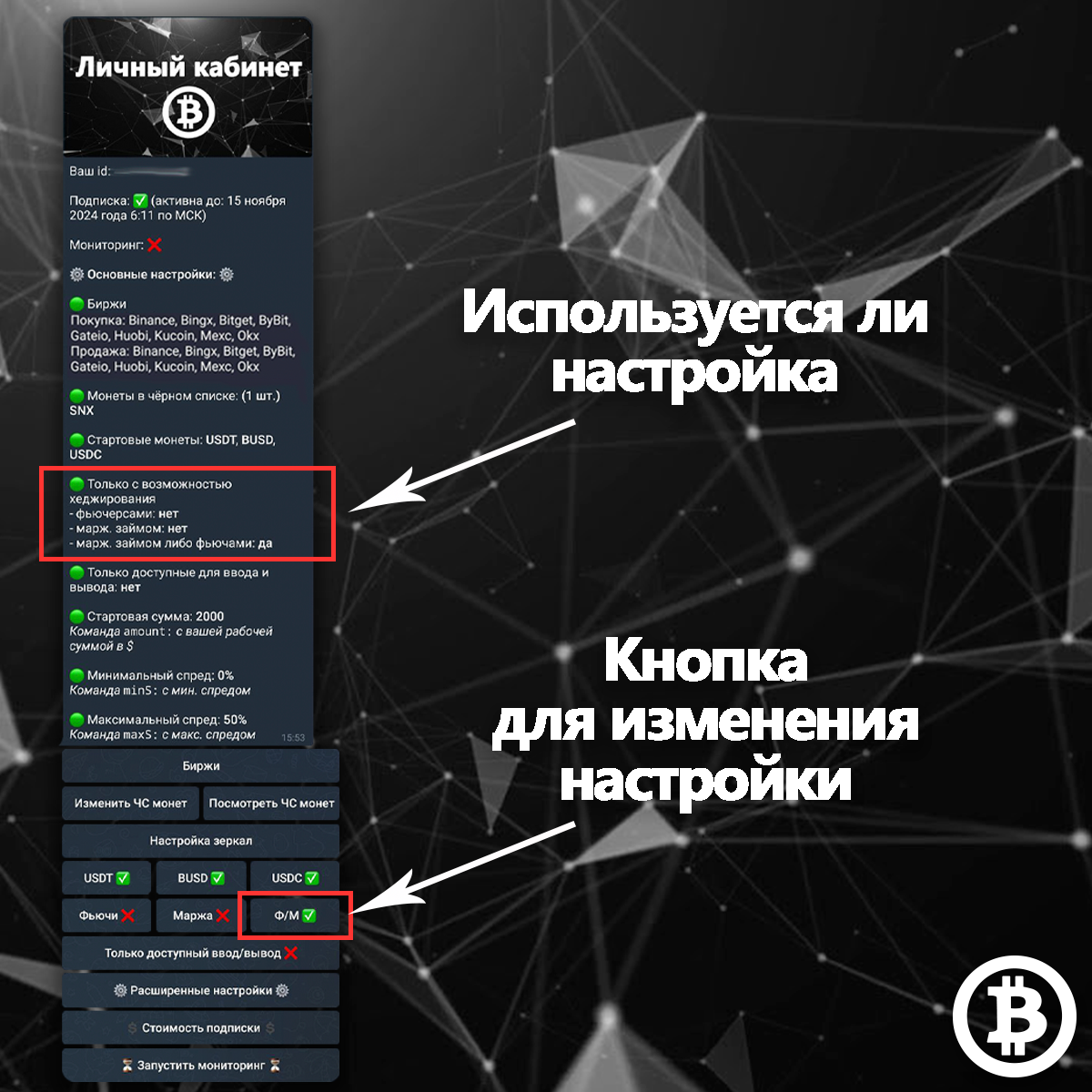
You can also enable the Futures or Margin hedging mode.
When this setting is enabled, you'll receive only arbitrage opportunities where at least one hedging method is available - either futures hedging, margin hedging, or both. Opportunities that don't support any type of hedging will be filtered out.
Available deposits and withdrawals onlyCopy link
For every arbitrage opportunity, the bot checks whether withdrawals are currently available on the sending exchange and whether deposits are available on the receiving exchange for each supported blockchain network.
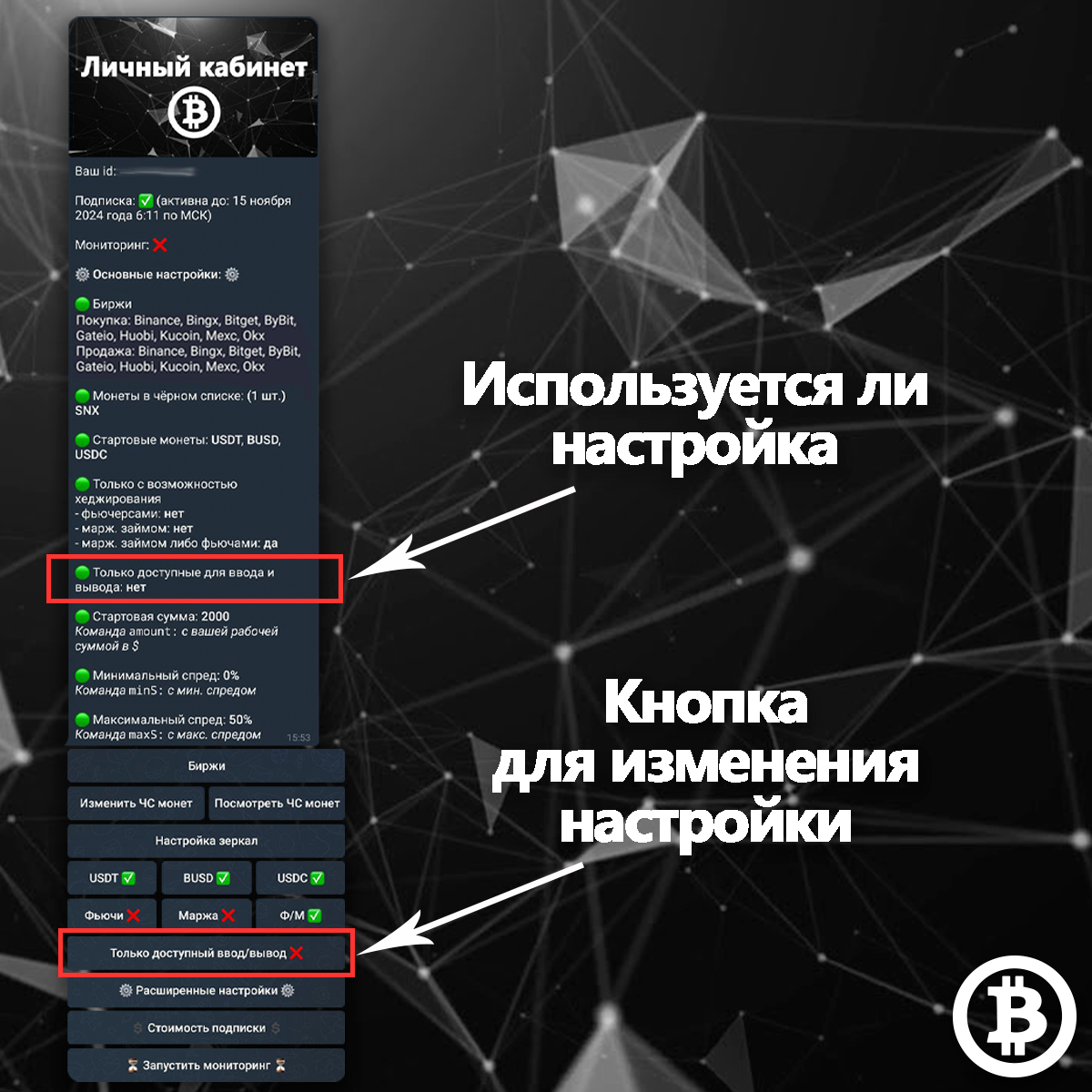
If the Available deposits and withdrawals only setting is enabled, the bot will show only arbitrage opportunities that use blockchain networks where both withdrawals from the sending exchange and deposits to the receiving exchange are currently available.
In your Personal account, you can see whether this setting is enabled. Tap the Available Deposits and Withdrawals Only button to toggle it. A ✅ icon means the setting is enabled and you'll receive only arbitrage opportunities with networks that currently support both deposits and withdrawals. A ❌ icon means the setting is disabled and you'll receive all arbitrage opportunities.
Starting amountCopy link
The bot calculates the spread, average execution price, required order book depth, and displays the relevant order book orders based on your selected trading amount.
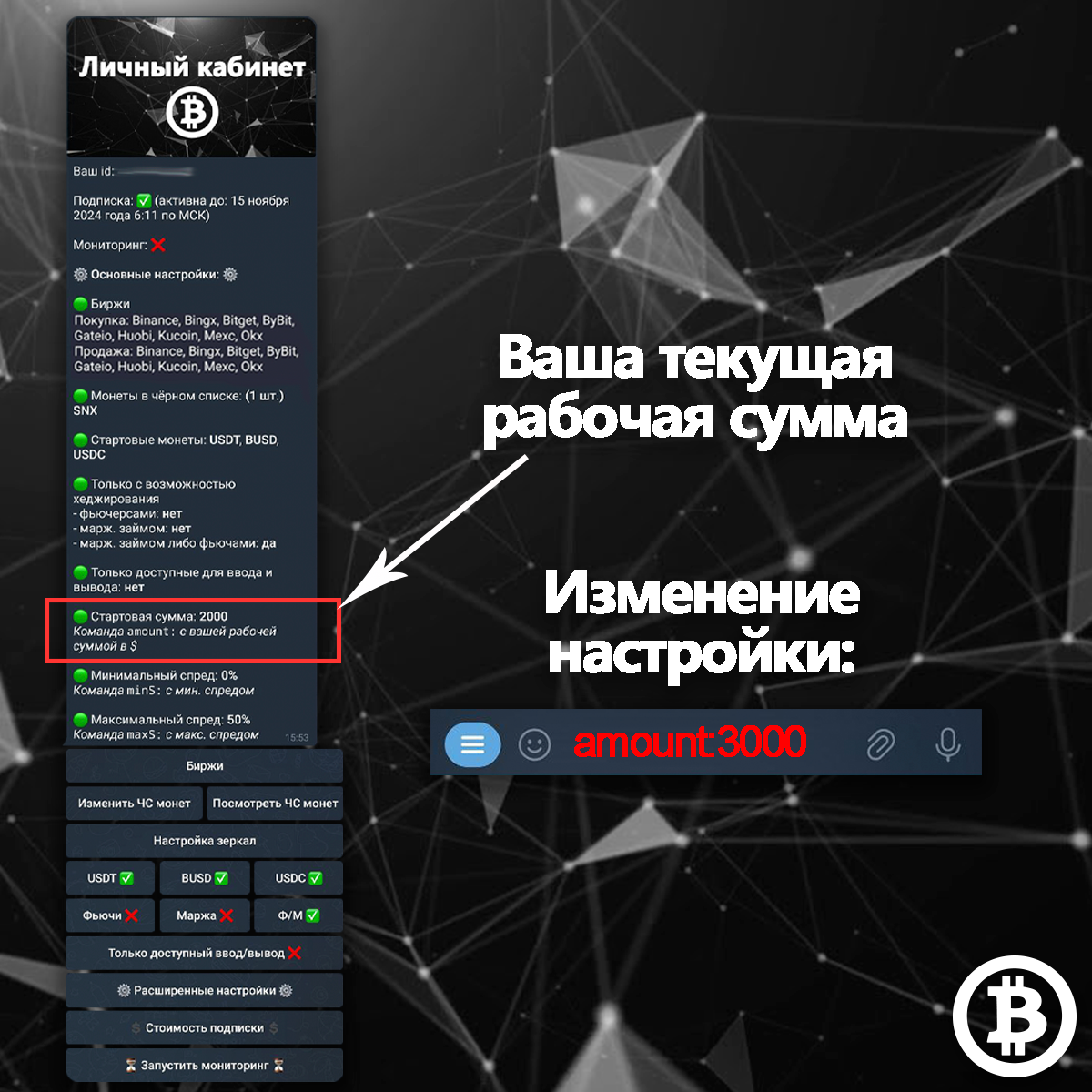
To change your trading amount, copy the amount: command from your Personal Account (the command can be copied with a single tap - you don't need to type it manually), paste it into the bot's message field, enter the amount you want to trade with, and send the message. The new setting will be applied immediately.
Minimum spreadCopy link
The bot will show you only arbitrage opportunities with a spread equal to or greater than the minimum spread you've specified.
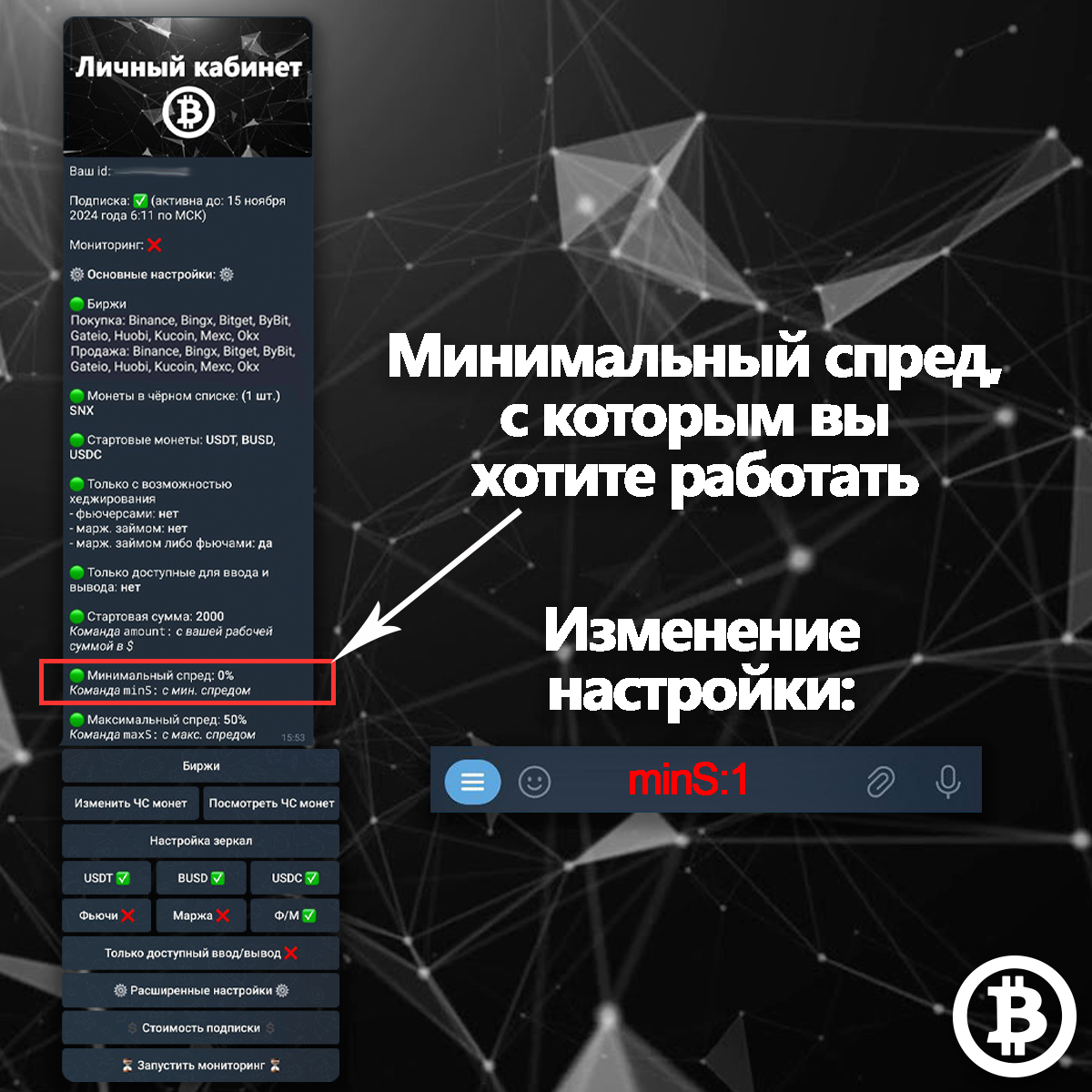
To change your minimum spread, copy the minS: command from your Personal Account (the command can be copied with a single tap - you don't need to type it manually), paste it into the bot's message field, enter the minimum spread you want to use, and send the message. The setting will be applied immediately.
Do not include the percent sign (%). You can enter either a whole number or a decimal value.
Maximum spreadCopy link
As mentioned earlier, cross-exchange cryptocurrency arbitrage has one important challenge: different coins can share the same ticker symbol on different exchanges. Although the coin names are identical, they may actually be completely different assets. To protect users from this issue, the bot provides two safety mechanisms:
- Mechanism #1 matching smart contracts
- Mechanism #2 maximum spread filter
Whenever possible, the bot verifies whether the smart contracts of the coins match and displays the result. However, some exchanges do not provide smart contract information for certain coins. In such cases, you'll need to verify the contract manually.
Solution:
An unusually large spread may indicate that the working coin is actually a different asset with the same ticker symbol. It can also signal other potential issues, such as unusually slow withdrawals on one of the exchanges. You can set the maximum spread you're willing to consider, and the bot will display only arbitrage opportunities with a spread equal to or below that value.
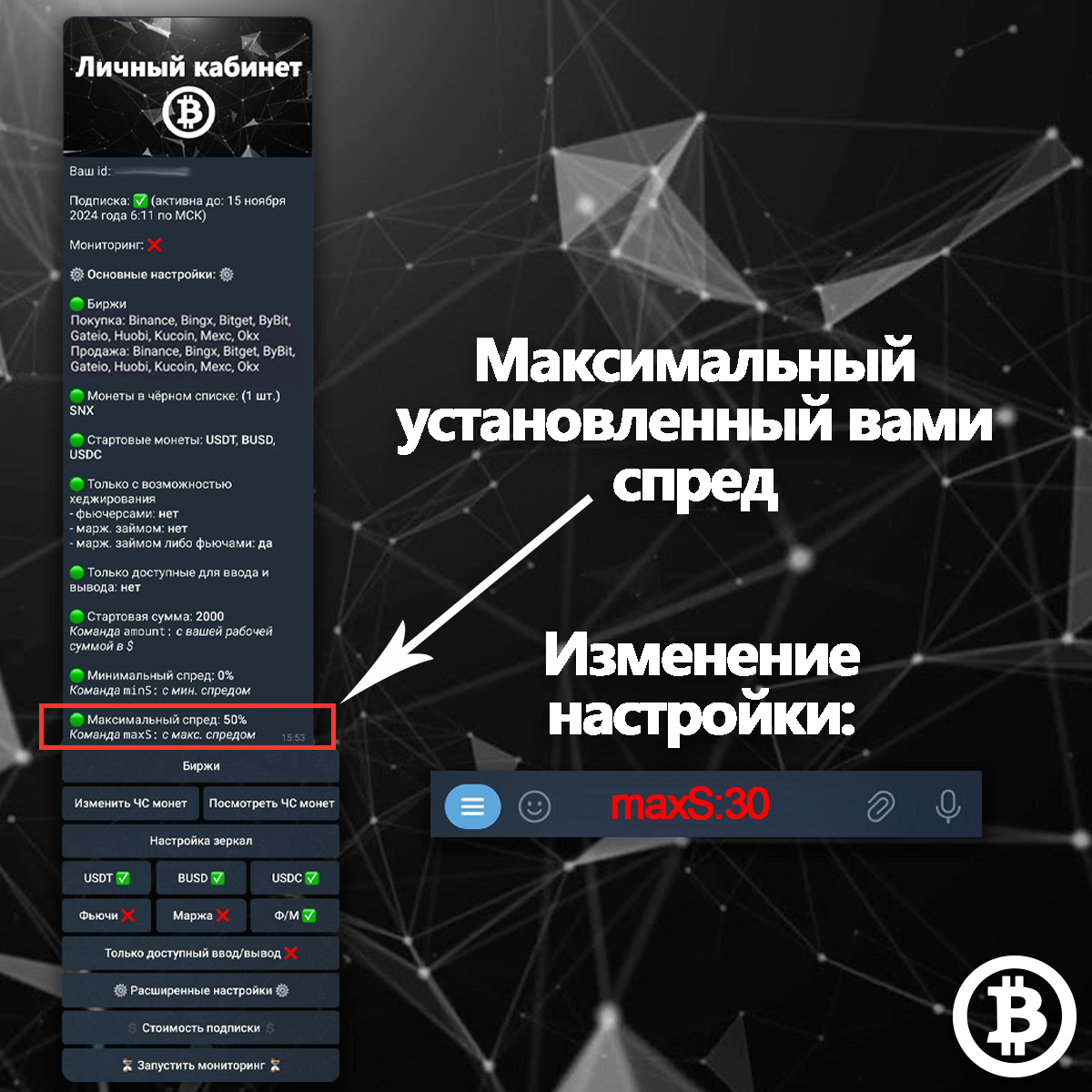
To change this setting, copy the maxS: command from your Personal Account (the command can be copied with a single tap - you don't need to type it manually), paste it into the bot's message field, enter the maximum spread you want to use, and send the message. The setting will be applied immediately.
Do not include the percent sign (%). You can enter either a whole number or a decimal value. This value cannot be set to 0.
Withdrawal fee includedCopy link
The settings described below are located in the bot's Advanced settings.
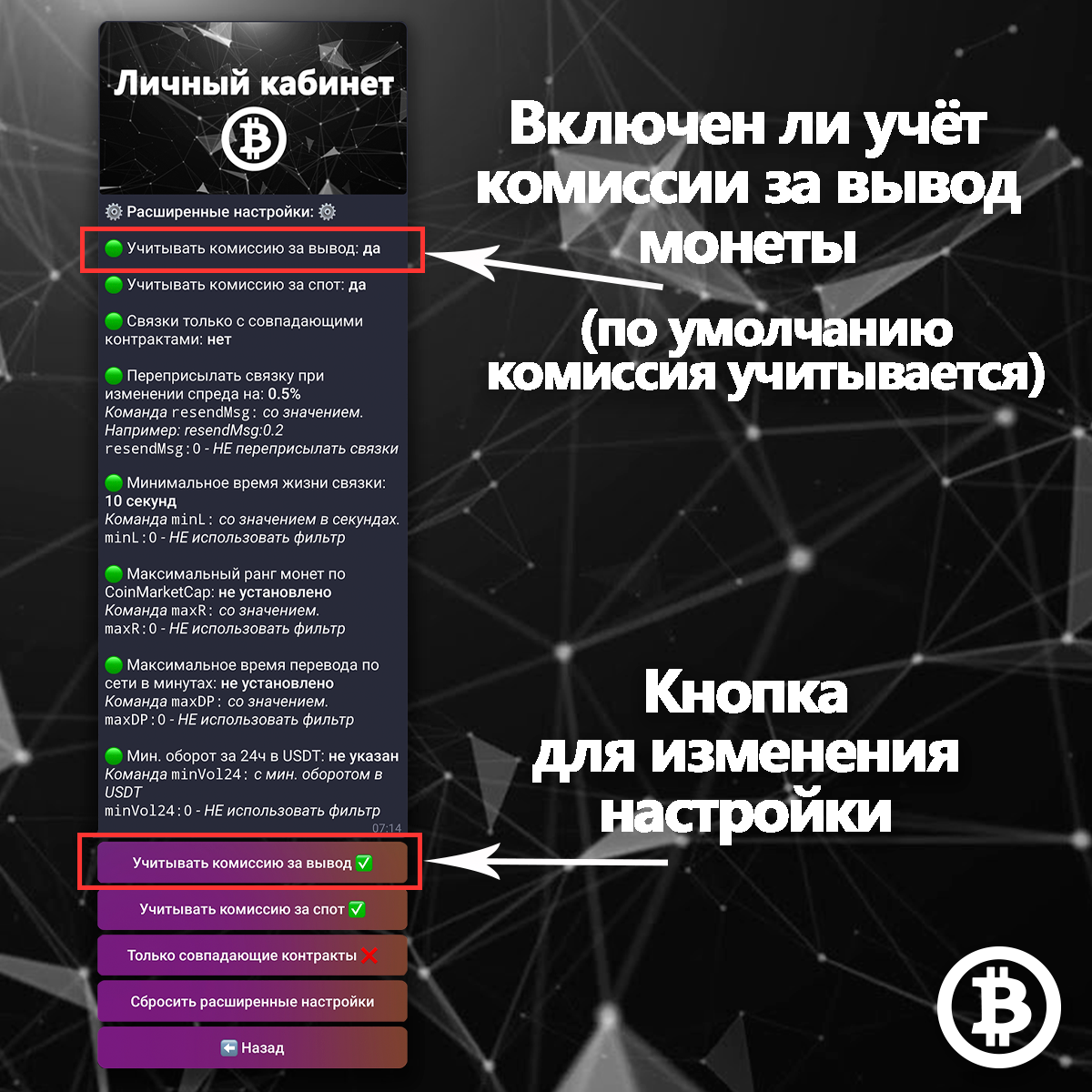
In your Advanced settings, you can see whether the withdrawal fee from the sending exchange is currently included in spread calculations. When this setting is enabled, the bot displays arbitrage opportunities with the withdrawal fee already deducted from the spread. If multiple blockchain networks are available for withdrawal, the bot automatically uses the network with the lowest withdrawal fee. By default, this setting is enabled unless you've changed it.
You can change this setting by tapping the Include withdrawal fee button. A ✅ icon means the setting is enabled and the withdrawal fee is included in the spread calculation. A ❌ icon means the setting is disabled and the withdrawal fee is not taken into account.
Spot trading fee includedCopy link
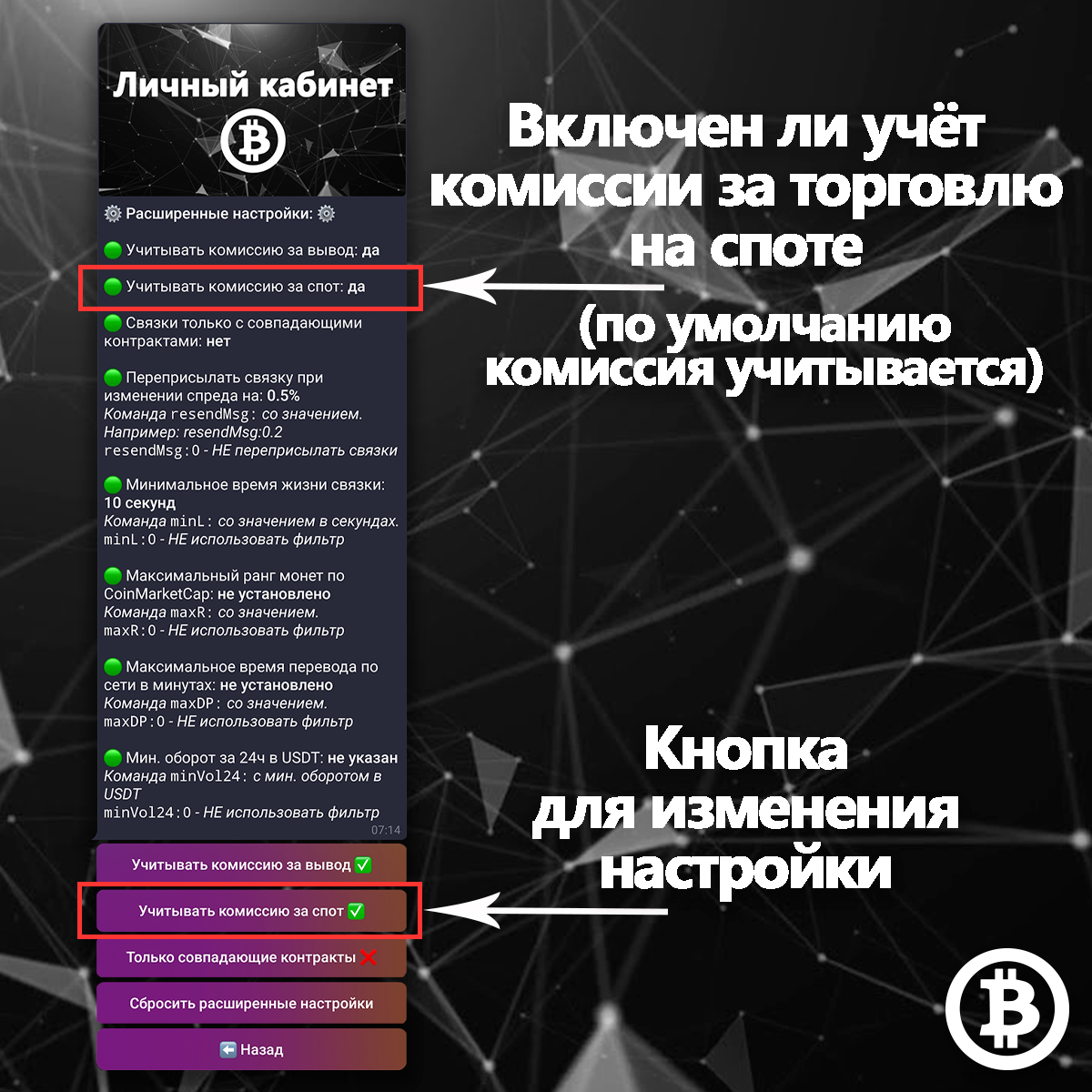
In your Advanced settings, you can see whether spot trading fees are currently included in spread calculations. When enabled, the bot calculates the spread after deducting the standard spot trading fees charged by both exchanges involved in the arbitrage opportunity. Many exchanges offer ways to reduce trading fees, but the bot uses the standard fee rates. By default, this setting is enabled unless you've changed it.
You can change this setting by tapping the Include spot trading fee button. A ✅ icon means the setting is enabled and spot trading fees are included in the spread calculation. A ❌ icon means the setting is disabled and spot trading fees are not taken into account.
Matching smart contractsCopy link
Whenever possible, the bot compares the smart contract addresses of the coins involved in an arbitrage opportunity. Why is this important?
Cross-exchange cryptocurrency arbitrage involves one significant risk. Different exchanges may use the same ticker symbol for completely different coins. Even if the ticker and blockchain network appear identical, different smart contracts mean they are different assets. If you withdraw such a coin from one exchange to another, the transfer may never arrive, which could result in losing your funds or going through a lengthy recovery process. That's why verifying matching smart contracts is essential for cross-exchange cryptocurrency arbitrage.
Whenever both exchanges provide smart contract information and the contracts match, the bot will clearly indicate this directly within the arbitrage opportunity.
You can also enable a filter that displays only arbitrage opportunities with matching smart contracts.

In your Advanced settings, you can see whether this filter is currently enabled. When enabled, the bot will show only arbitrage opportunities where both exchanges provide smart contract information for the working coin and the smart contracts match. By default, this filter is disabled unless you've changed it.
You can change this setting by tapping the Matching smart contracts only button. A ✅ icon means the filter is enabled, while a ❌ icon means it is disabled.
Resend an opportunity when the spread increasesCopy link
As mentioned earlier, the bot operates in real time. Resending the same arbitrage opportunity every time its spread changes slightly would quickly become overwhelming, as you could receive updates every few milliseconds. To solve this, the bot includes a feature that resends an arbitrage opportunity only when its spread increases by the percentage you specify.
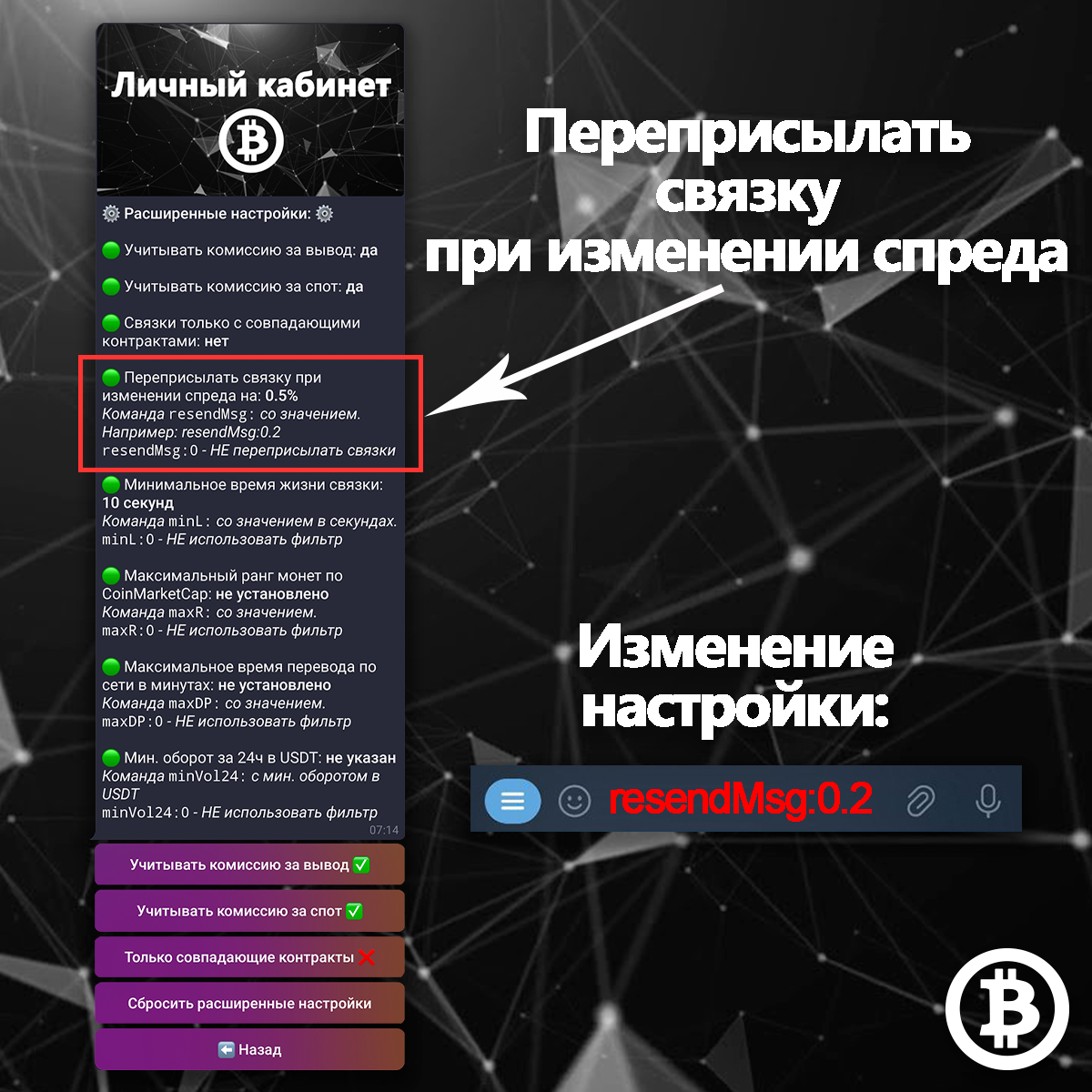
For example, let's say you want the bot to resend an arbitrage opportunity every time its spread increases by 0.2%. Simply send the command resendMsg:0.2 to the bot. The opportunity will first be sent when its spread reaches or exceeds your minimum spread setting (for example, if your minimum spread is 0.5%, you'll receive it when the spread reaches 0.5%). If the spread later increases to 0.7%, the same opportunity will be sent again, and the process will continue each time the spread increases by another 0.2%.
To change this setting, copy the resendMsg: command from your Personal Account (the command can be copied with a single tap - you don't need to type it manually), paste it into the bot's message field, enter the desired value, and send the message. The setting will be applied immediately. By default, this feature is disabled unless you've changed it.
Do not include the percent sign (%). You can enter either a whole number or a decimal value.
To disable this feature, send the command resendMsg:0 to the bot.
Minimum opportunity lifetimeCopy link
As mentioned earlier, our algorithm tracks how long each arbitrage opportunity remains available. This setting helps you avoid opportunities that appear briefly due to sudden market price fluctuations and disappear almost immediately.
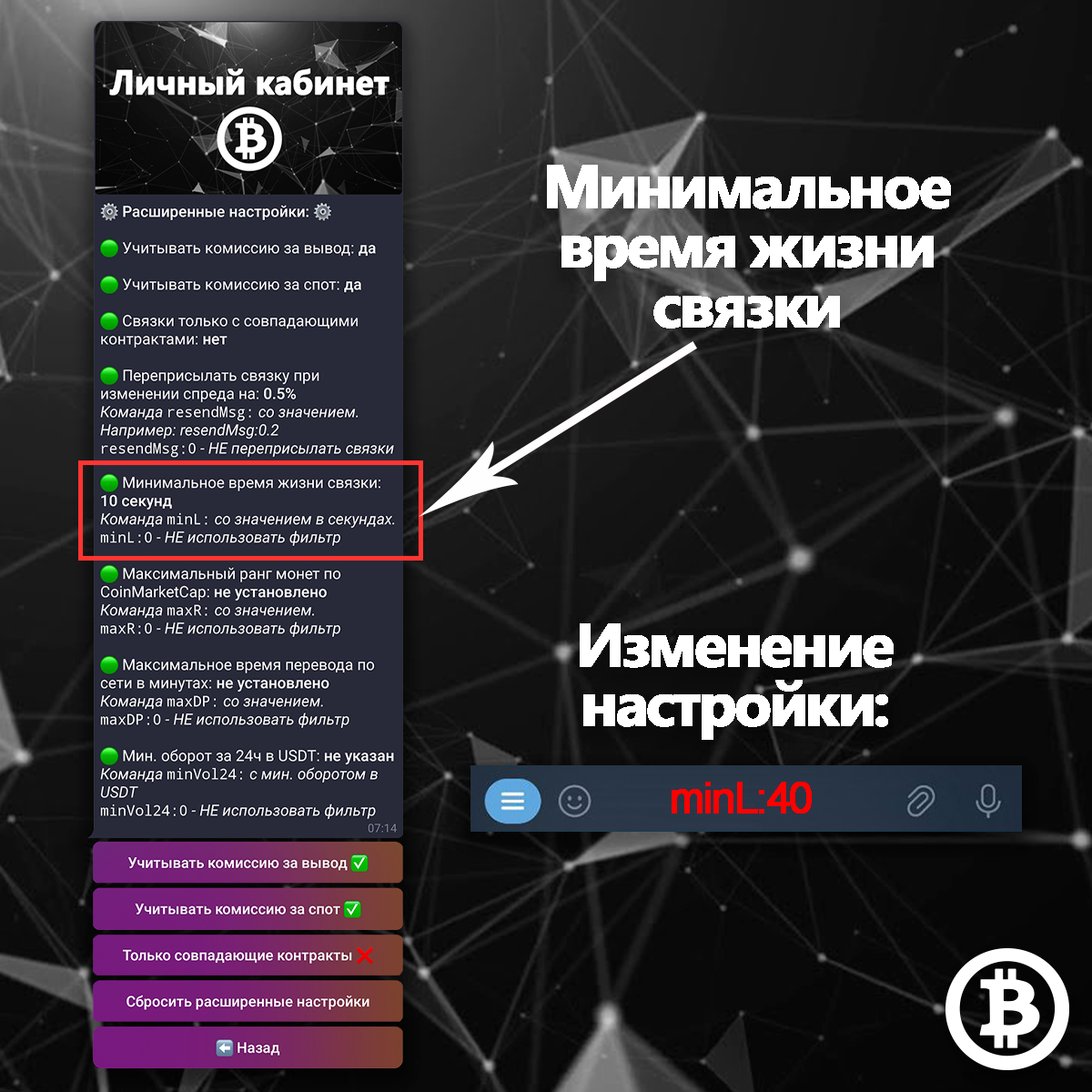
To change this setting, copy the minL: command from your Personal Account (the command can be copied with a single tap - you don't need to type it manually), paste it into the bot's message field, enter the desired minimum lifetime in seconds, and send the message. The setting will be applied immediately. By default, this feature is disabled unless you've changed it.
Only whole numbers are accepted.
To disable this feature, send the command minL:0 to the bot.
CoinMarketCap rankingCopy link
CoinMarketCap is one of the oldest and largest cryptocurrency data aggregators. It collects market data from exchanges around the world and tracks key metrics for cryptocurrencies and trading platforms, including trading volume, prices, market capitalization, circulating supply, and more.
CoinMarketCap rankings are one of its primary analytical tools. Our bot retrieves ranking data from CoinMarketCap and displays the working coin's ranking along with a link to its CoinMarketCap page directly inside each arbitrage opportunity. From that page, you can access additional information about the coin, including:
- Project information: whitepaper, official website, social media accounts, and other contact details
- On-chain data: smart contract address, blockchain network, and blockchain explorer
- Market metrics: trading volume, circulating supply, market capitalization, and more
In general, the higher a coin ranks on CoinMarketCap, the more liquid it tends to be.
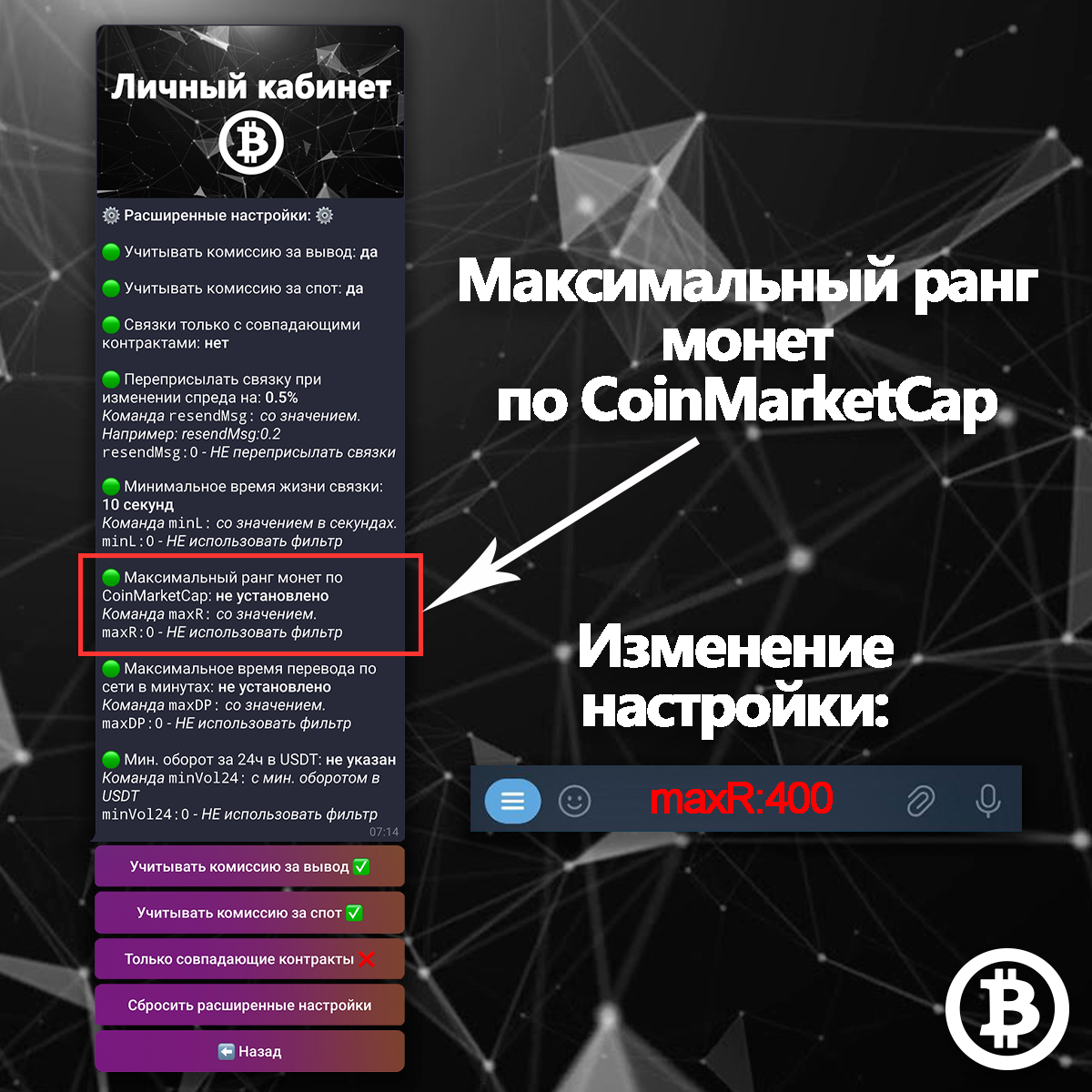
You can enable this filter to receive only arbitrage opportunities involving coins ranked above the maximum CoinMarketCap rank you specify.
To change this setting, copy the maxR: command from your Personal Account (the command can be copied with a single tap - you don't need to type it manually), paste it into the bot's message field, enter the desired rank, and send the message. The setting will be applied immediately. By default, this feature is disabled unless you've changed it.
Only whole numbers are accepted.
To disable this feature, send the command maxR:0 to the bot.
For example, if you set the maximum CoinMarketCap rank to 400, you'll receive only arbitrage opportunities involving coins that are ranked within the top 400 on CoinMarketCap.
Maximum transaction timeCopy link
For each arbitrage opportunity, the bot displays the estimated coin unlock time for every available blockchain network - that is, how long it will take before the transferred coins become available for selling on the spot market.
- Green indicates an estimated unlock time of up to 15 minutes.
- Yellow indicates an estimated unlock time between 15 minutes and 1 hour.
- Red indicates an estimated unlock time of more than 1 hour.

You can set a maximum allowed transaction time for blockchain transfers. The bot will filter out arbitrage opportunities that use networks with an estimated transfer time longer than the value you specify. To change this setting, copy the maxDP: command from your Personal Account (the command can be copied with a single tap), paste it into the bot's message field, enter the desired value in minutes, and send the message. The setting will be applied immediately.
By default, this filter is disabled.
Only whole numbers are accepted.
To disable this feature, send the command maxDP:0 to the bot.
Minimum 24-hour trading volumeCopy link
The bot displays each coin's 24-hour trading volume directly within every arbitrage opportunity. Trading volume is shown in USDT. Higher trading volume generally means it's easier to buy and sell the coin and reduces the risk of slippage.

You can set a minimum 24-hour trading volume filter. The bot will not show arbitrage opportunities involving coins whose 24-hour trading volume is below the value you specify.
To change this setting, copy the minVol24: command from your Personal Account (the command can be copied with a single tap), paste it into the bot's message field, enter the desired value in USDT, and send the message. The setting will be applied immediately.
By default, this filter is disabled.
Only whole numbers are accepted.
To disable this feature, send the command minVol24:0 to the bot.
Reset advanced settingsCopy link
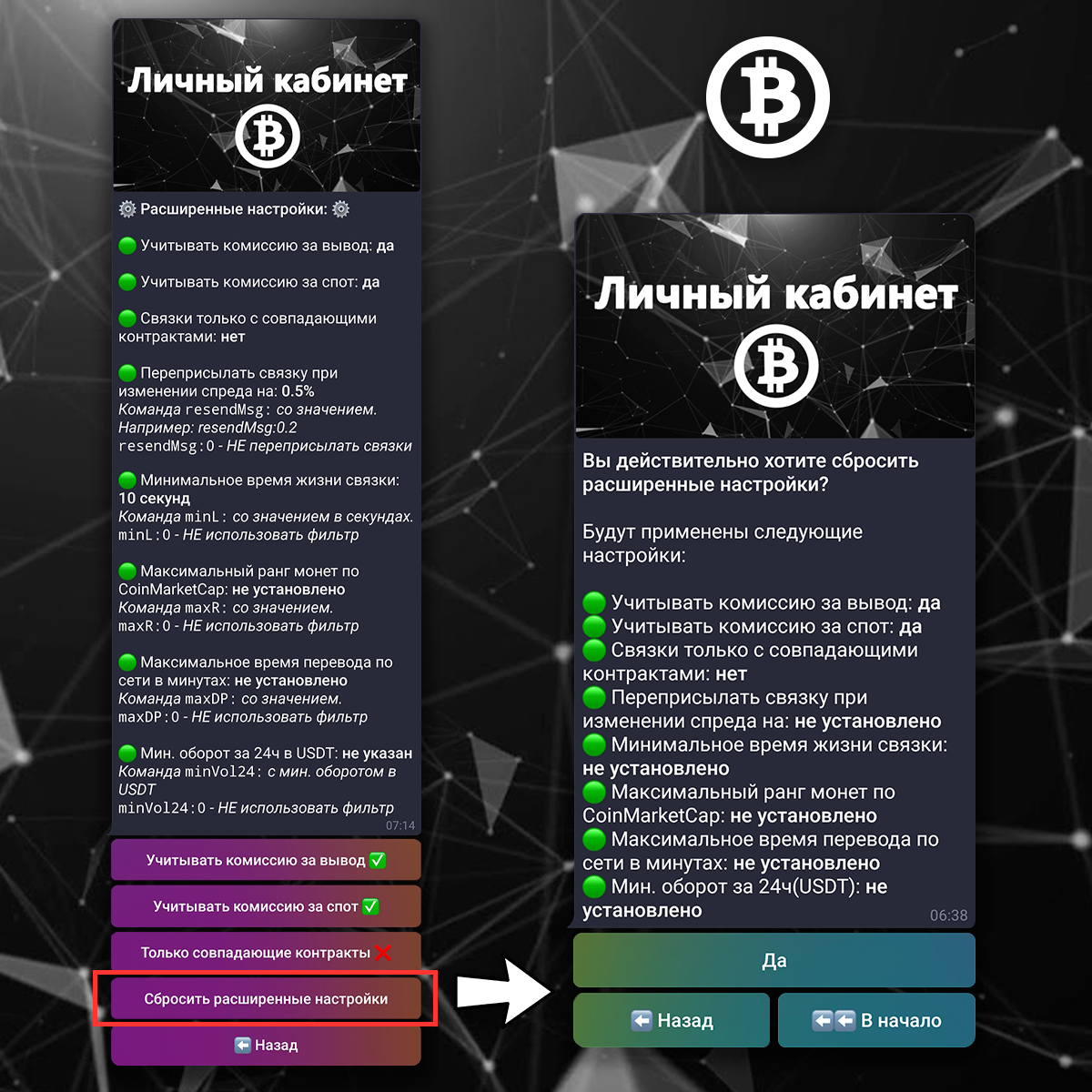
You can restore all of your Advanced settings to their default values by tapping the Reset advanced settings button.
The following default settings will be applied:
- Include withdrawal fee: Yes
- Include spot trading fee: Yes
- Matching smart contracts only: No
- Resend an opportunity when the spread increases by: Not set
- Minimum opportunity lifetime: Not set
- Maximum CoinMarketCap rank: Not set
- Maximum blockchain transfer time (minutes): Not set
- Minimum 24-hour trading volume (USDT): Not set
Where can I find this guide in the bot?Copy link
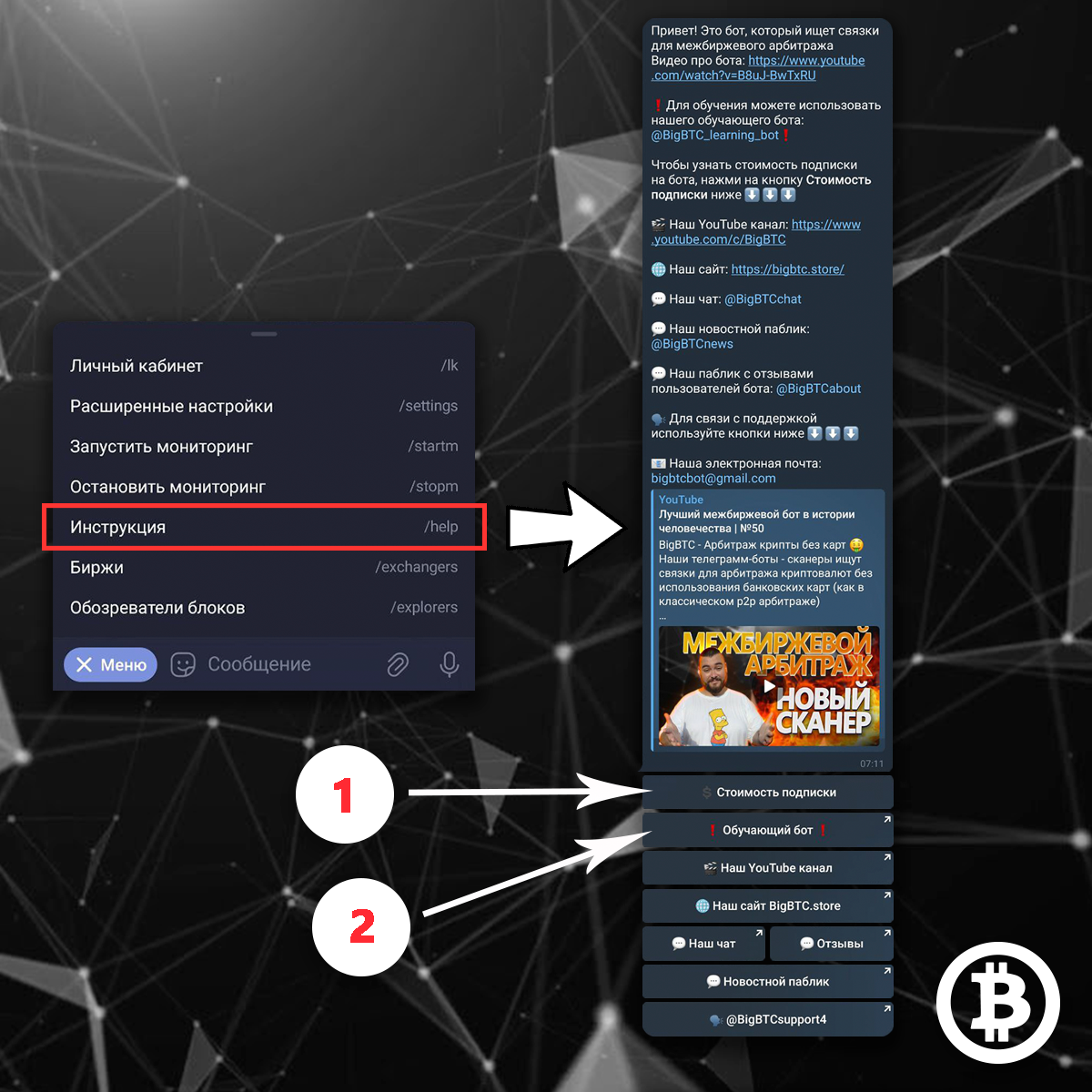
Tap the Guide button in the bot's main menu to access the complete user guide and links to all of our resources.
1Tap the Subscription pricing button to view the current subscription price for the Cross-Exchange Cryptocurrency Arbitrage Bot.
2Tap the Educational bot button to open our educational Telegram bot.
The last button opens the bot's support chat. You can purchase or renew your subscription through our support team.
Which exchanges does the bot support?Copy link
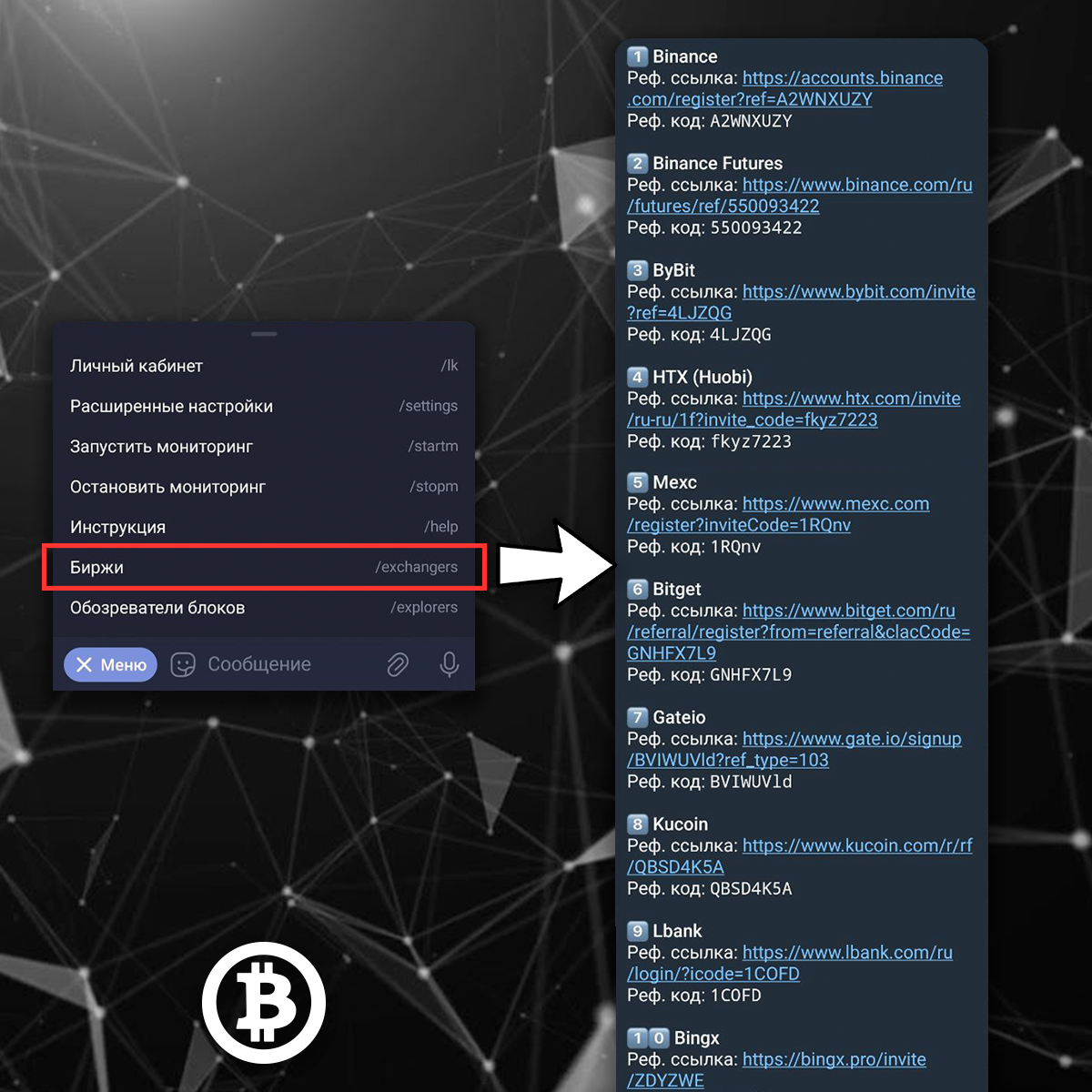
The list of supported cryptocurrency exchanges is continuously expanding and may change over time. To see the exchanges currently supported by the bot, tap the Exchanges button in the bot's main menu. The bot will display the latest list of supported exchanges along with their registration links.
Blockchain explorersCopy link
Blockchain explorers are services that provide information about blockchain transactions, blocks, wallet addresses, and network statistics. This information is publicly available (except for privacy-focused cryptocurrencies), and blockchain explorers organize it into a searchable interface.
You can search using a transaction ID (TXID), a wallet address, or a block height.
Some blockchain explorers support multiple networks, so be sure to select the correct blockchain before searching. For example, searching for an Ethereum transaction on the Bitcoin network won't return any results.
Blockchain explorers let you check how many confirmations a transaction has received, helping you estimate when it will be completed. You can also view the balance and transaction history of any wallet address.
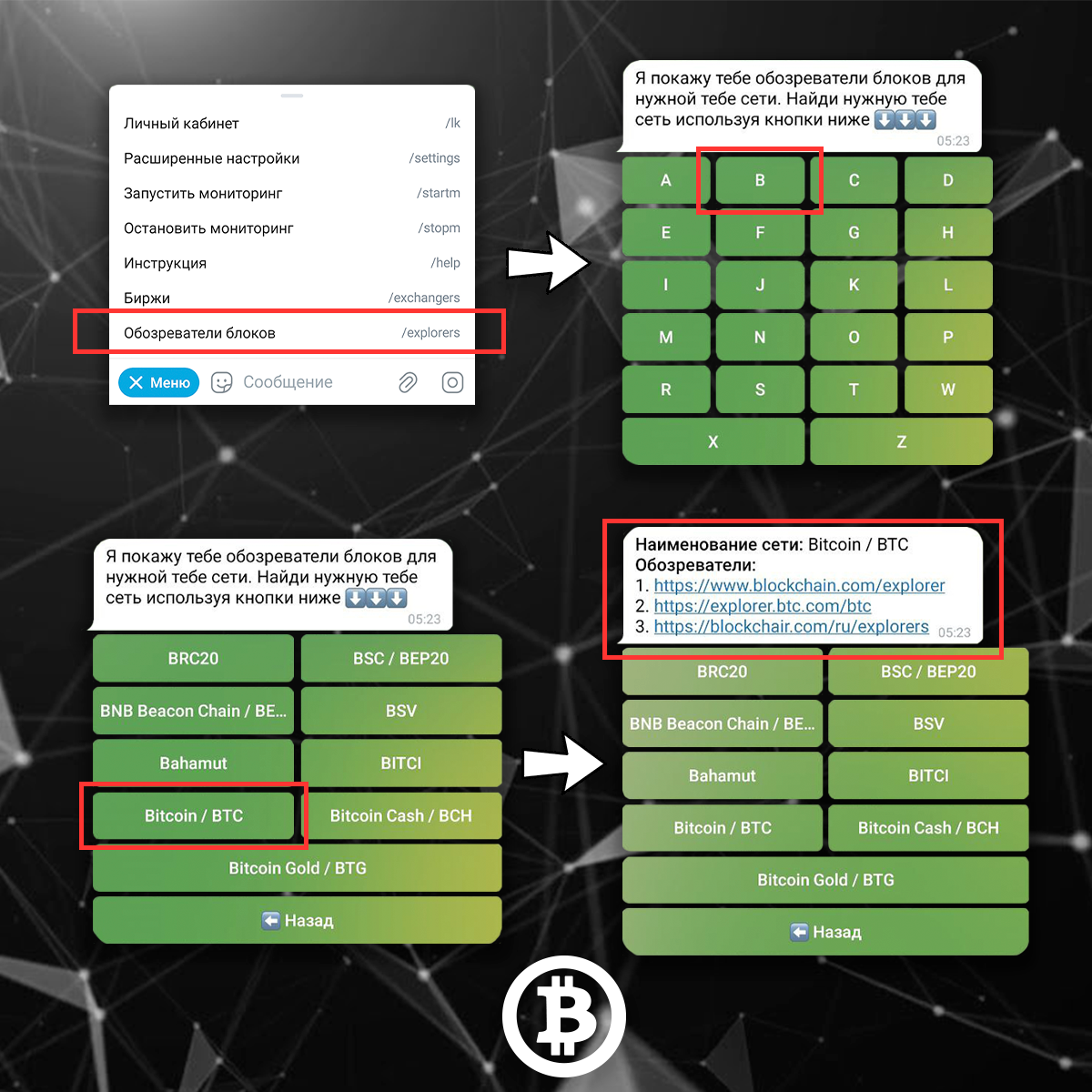
Tap the Blockchain explorers button in the bot's main menu to view blockchain explorers for a specific network. Networks are grouped alphabetically.
For example, if you need a blockchain explorer for the Bitcoin network, tap Blockchain explorers, then select the letter B, and finally tap Bitcoin. The bot will display links to blockchain explorers for the Bitcoin network.
How much does a subscription cost?Copy link
Subscription pricing for the Cross-exchange cryptocurrency arbitrage bot:
- 1 week = 25 USDT
- 2 weeks = 45 USDT
- 1 month = 65 USDT
- 3 months = 150 USDT
- 6 months = 250 USDT
- 1 year = 450 USDT
- Lifetime = 800 USDT
If you subscribe to two bots at the same time (for example, the Binance–BestChange Arbitrage Bot and the Cross-Exchange Cryptocurrency Arbitrage Bot), you'll receive a 25% discount on the total subscription price ⭐️
Subscription prices for both bots with the discount applied:
- 1 week = 37 USDT
- 2 weeks = 67 USDT
- 1 month = 97 USDT
- 3 months = 225 USDT
- 6 months = 375 USDT
- 1 year = 675 USDT
- Lifetime = 1,200 USDT
How do I purchase a subscription?
To purchase a subscription, contact the bot's support team using the support link available inside the bot.